Event Manager Release Archive
Below is b a list of archived enhancements and bug fixes deployed to Event Manager.
 Release Notes 05.11.2026
Redesigned Location Component in the Event Form
-
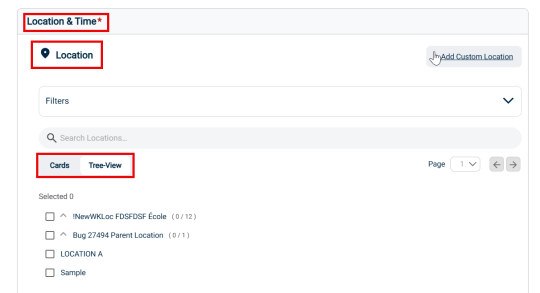
Picking up location while creating an event is made easy with the new redesigned Location section in the EventForm.
-
The new design enables quicker and more accurate location selection improving speed and efficiency of event creation.
-
The location details are now displayed in Cards-View and Tree-View for easy accessibility.
-
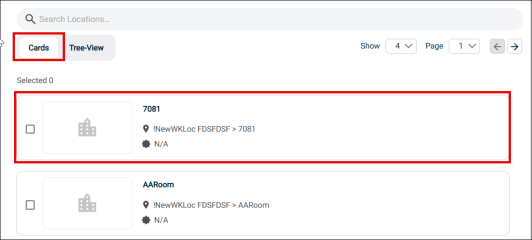
The Cards View displays locations as individual cards for quick visual browsing and easy selection.
-
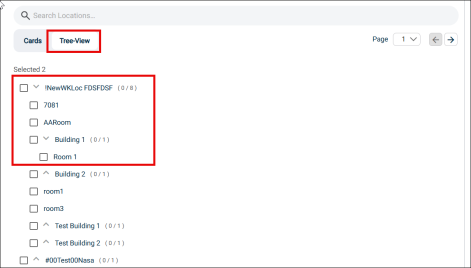
While the Tree View gives a clear, hierarchical structure of locations, allowing you to navigate and select nested places efficiently.
Mobile Responsive View of Save and Registered Events
- Saved and Registered Events page in My Account is fully mobile-responsive.
-
The page auto adjusts as per the mobile screen sizes.
Release Notes 04.13.2026
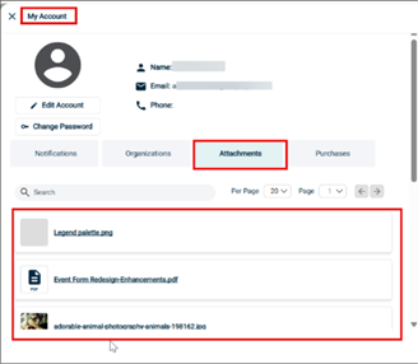
Open Attachments tab from My Account Section
-
View and open Attachments tab from Manage My Account section..
-
Get the list of all images and general attachments attached to your account.
-
Filter the displayed list of artifacts using the Search bar.
View Tickets from “Get Your Tickets” Option
-
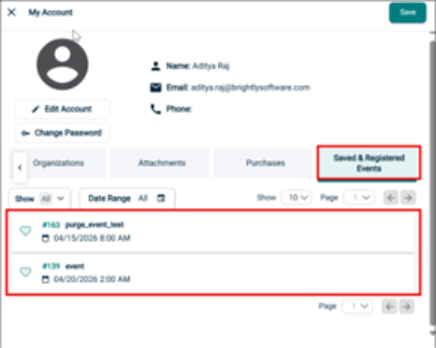
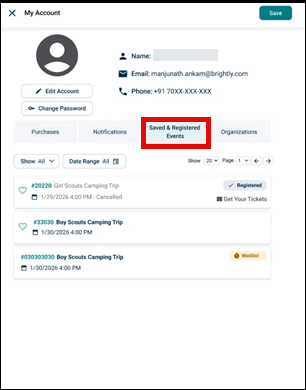
Check the details of events from the Saved & Registered Events tab from My Profile section.
-
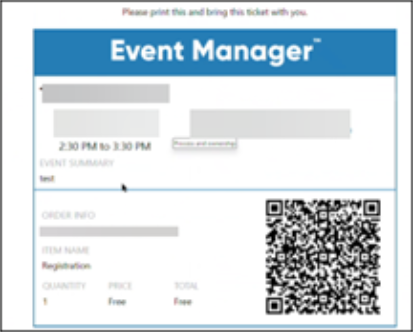
Access and download your event tickets directly from the tab using the new Get Your Tickets button.
Filter Events by Categories and Dates
-
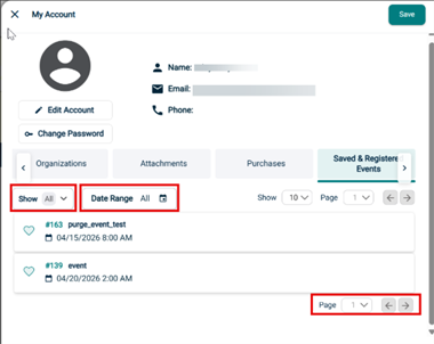
Filter Saved and Registered Events by categories and dates in the My Profile section.
-
Filters now let you view events by Favorites, Registered, and Waitlisted categories, as well as by custom date range—so you can quickly check the events.
-
The event list updates instantly based on your selections, and if no events match, you’ll see a clear “No events found” message.
Release Notes 04.01.2026
View Purchases tab from My Account Section
Users can now manage their profile using the user icon on top right corner of the application.
-
Users can now view the Purchases tab from the Manage My Account section.
-
The new Purchases layout is available for all authenticated mobile users.
-
The tab layout adapts to mobile screen sizes as needed.
Quill Editor for formatting content in the Event Form
-
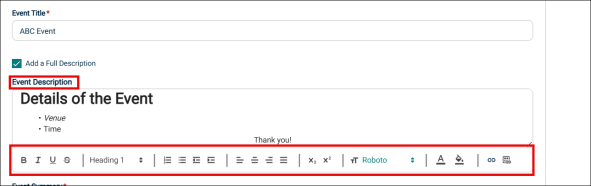
Quill Editor is now available to format content in the Description section of Event Form.
-
Users can format text, add headings, lists, links, images, and alignment using Quill Editor.
Release Notes 02.24.2026
New Way to Manage Your Profile
Users can now manage their profile using the user icon on top right corner of the application.
-
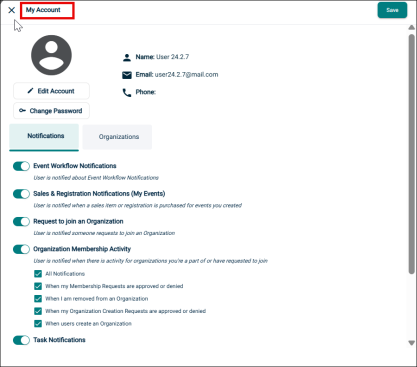
Upon clicking the Manage my account option from the Profile icon, My Account page will open.
-
This page will display your account details along with the options to Edit Account and Change Password.
-
It also has two tabs: Notifications and Organizations to manage your notifications and organization details.
Release Notes 02.05.2026
New Sorting Options Available
The Event List page now includes two new sorting functionalities, enabling users to organize the event data according to Event ID and Submission Date & Time.
-
Event ID
-
Ascending (ASC): Sorts the event list from the lowest to the highest Event ID.
-
Descending (DSC): Sorts the event list from the highest to the lowest Event ID.
-
-
Submission Date & Time
-
Ascending (ASC): Displays submissions from oldest to newest.
-
Descending (DSC): Displays submissions from newest to oldest.
-
Release Notes 12.04.2025
Review Event Snapshot
The system is enhanced to maintain a snapshot of the information from the Review Event page. This is aimed at preventing loss of data. This enhancement applies to both Review Event and Review Series action types.
If a tenant administrator removes component(s) (including those containing user data) from the event form assigned to the site after an event was created or edited; on the Review Event page these components are preserved. If you navigate to the Review Event page, you can see the removed components along with any data that was originally entered by the user.
Important Points:
-
If the user had entered data in some of the fields in a component that was later removed, then the review event page displays that component with the entered data. The remaining fields are shown as blank.
-
If the user has left all the fields in a component as blank and it was later removed, then this component is not shown on the Review Event page.
-
If the user edits an event and modifies only some of the fields in a component that is later removed; then the Review Event page shows the updated fields with the latest data. The fields where no change was made will show the original data.
User Interface Enhancement: Login and Forgot Password
The appearance of the Event Manager Login page and Forgot Password page is changed to make it consistent with Brightly colors. The pages are now clutter free and have a professional look and feel. Users are expected to have an enjoyable experience, feel safe using the service, and more likely to return.
There is no change to the existing functionality. For more information, click here.
Public Organizations and Automatic Approval Options
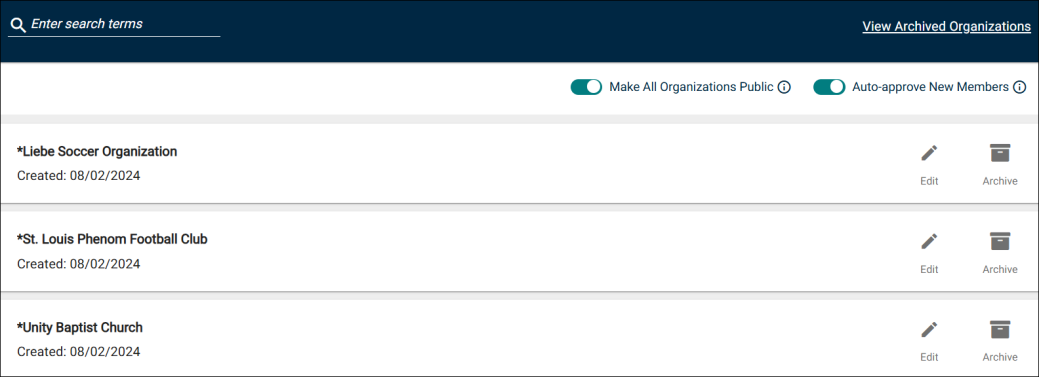
Under this enhancement, the following toggle buttons are added to the Organizations page.
-
Make All Organizations Public
-
Auto-approve New Members
These toggle buttons are used for controlling the visibility and approval behavior of organizations listed on the site. These setting can be configured only by a tenant administrator. Changes made to one site under the tenant reflect on all other sites.
Benefit
These self-service options are aimed at providing greater transparency and accessibility to the requestors during organization selection. It will also reduce the administrative overhead for leaders who are tasked with approving such requests.
For more information, click the following links:
Redesigned Categories and Keyword Section
The Categories and Keyword section on the event request form is redesigned and user interface changes are made. The interface is more appealing to the eyes and easy to use. This will help the requestors to quickly fill the event form and submit for approval.
The changes made under this enhancement are applicable to both requestors and tenant administrators.
For more information, click the following links:
Site Switching Functionality for SSO Users
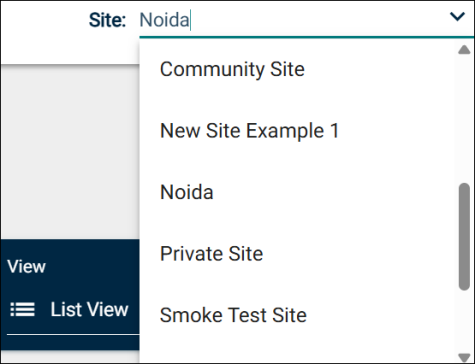
This enhancement enables SSO users who log on to Event Manager and have global permissions enabled using SSO settings to effortlessly switch between the sites that are created under the same tenant. A dropdown list is provided near the top-right corner of the page and they can simply select the site that they want to work with.
Release Notes 11.12.2025
Redesigned Event Request Form
The Event Request form is redesigned by moving the form components to the right side of the page. You can insert or drag and drop the component the same way. The Event Details section is also redesigned so that it is easy for the requestors to quickly fill up and submit the form.
Updated Event Details Section
User interface changes are introduced and the look and feel of this section is improved. This is expected to make it easy for requestors to fill the event form and submit. The changes made under this enhancement are visible to both tenant administrators and requestors.
The following user interface changes are made:
-
The interface has a better look and feel with improved visibility.
-
Adding an Event Description:

-
When the Required check box is selected, the Event Description box is displayed and the Add a Full Description check box is not displayed
-
When Add a Full Description check box is selected and the Required check box is cleared, the Event Description box is displayed. The Add a Full Description check box is also shown as selected.
-
When both Add a Full Description and Required check boxes are cleared, then the Event Description box is not displayed. The Add a Full Description check box is displayed as cleared. You can select the Add a Full Description check box to display the Event Description box.
NOTE The above settings are configured by the tenant administrator for the form linked to the site on which the requestor has logged on.
-
-
If the Event Description text box is left blank then the content from the Event Summary box is copied to Event Description. The content is displayed on the public calendar and also if you invoke the Print Event action (summary and full detailed option).
-
The Event Description text box has an editor will options such as bold, italics, underline, numbered list, bulleted list and so on. It is displayed only when you click inside the text box.
-
Event Title is a mandatory field. The Required check box is selected by default and always grayed out.
-
All the mandatory fields are displayed with a red asterisk symbol.
-
Event Description and Event Summary boxes can be expanded by dragging the three lines on the bottom right corner of the text box.
-
The Event Summary text box accepts a maximum of 300 characters. A counter is provided that shows the updated count dynamically as you add and delete characters.
-
The description that is entered for an event is shown on the public calendar whereas the summary is not.
-
When the Print Event action is initiated, the selected Organization, Event Description, and Event Summary are displayed in the output (summary and full details options).
-
The selected organization is displayed in the Event Details report, Event Summary report, Location Utilization report, Organization Event Details report, and Tasks report
-
The entered event title is displayed in the Event Details report, Event Summary report, Organization Event Details report, Location Conflict report, Registration and Sales Items report, and Tasks report
-
On the Event Request form, when the tenant administrator selects the Required check box for a field, the red asterisk symbol is displayed. It is shown both to the administrator as well on the actual form that is filled by the requestor.
-
For Organization and Event Summary fields, if the tenant administrator selects the Hide check box; then those fields are not shown on the actual Event Request form shown to the requestors.
Invoice Button on the Event Request Form
On the Modify an Event page, tenant administrators will see the Invoice button. This button appears when the Edit Event or Edit Series option is clicked. For more information, click here.
Dynamically Update Component Header on Event Request Form
On the event request form, when a tenant administrator customizes and saves a Component Header or description, the changes are updated in real time.
After this, if the component is removed from the form and then dragged and added again; the Component Header is reset to the base name. The Component Header is once again available for customization.
NOTE The changes made by the tenant administrators to the Component Header and Description (on the event request form) will be visible to the requestors when they are creating, editing, or reviewing events. These changes are visible dynamically when they are in the process of creating and editing events.
Release Notes 10.02.2025
Enhanced Quick Form
We've updated the Quick Form to make it easier to use and significantly enhancing security for your data submissions. For more information, click here.
My Profile Organization Overview
The My Profile section now provides a quick and clear overview of a requestor's pending requests, helping them stay on top of all active submissions at a glance. For more information, click here.
Updated Insurance Section
Experience a refreshed look and feel for the insurance section. You now have the added flexibility to relabel the section and include a sub header, allowing for clearer and more tailored information display. You have the option to upload an insurance document from your computer or drag and drop it in the space provided.
For more information, click here.
Updated Contact Section
The Contact section has received a visual update and powerful new functionalities. You have the added flexibility to relabel the section and include a sub header. It will also pre-populate the requestor's contact information (with the ability to edit as needed), and easily select the organizational contact via a convenient dropdown menu.
For more information, click here.
Organized Media Library
Navigating your Media Library is now simpler than ever before. We have introduced a powerful search option and ensured all your files are displayed in clear alphabetical order for quick and easy access.
For more information, click here.
Expanded Review Event
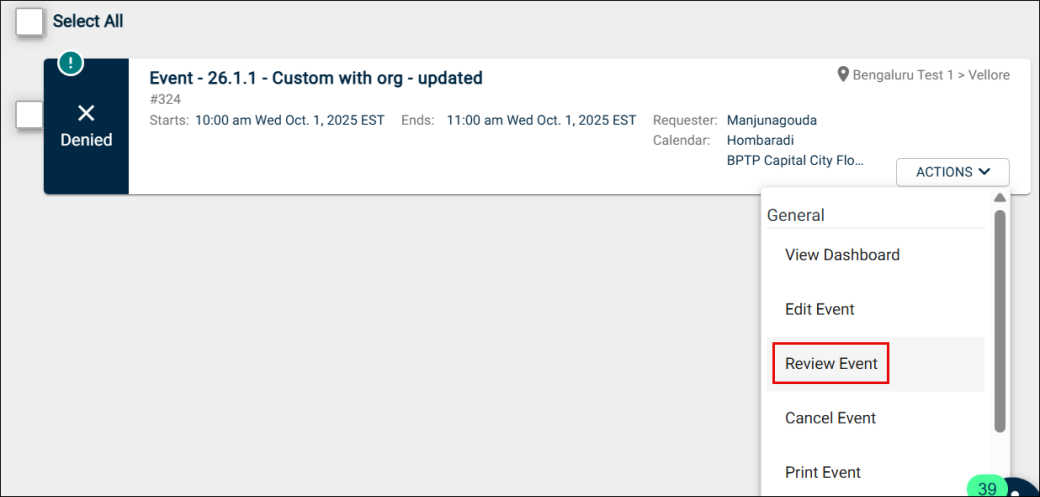
The Review Event option is expanded to include events with Denied, Canceled, and Deleted statuses. This will provide relevant information to understand why these events were not approved or removed. It will also help in taking informed decisions, increase transparency, and ensure accountability.