Back to Event Manager Main Menu
Managing My Profile
Once you have an account in Event Manager, you can access and manage your personal information. This includes viewing a list of your events, managing email notification settings, editing your name and password, and more.
To access My Profile:
Click the My Profile menu option from the side navigation menu.
A New Way to Manage Your Profile is now available. Check the steps here to easily update and manage your account settings.
How to Manage Your My Profile Page
The My Profile page is divided into six tabs:
My Events
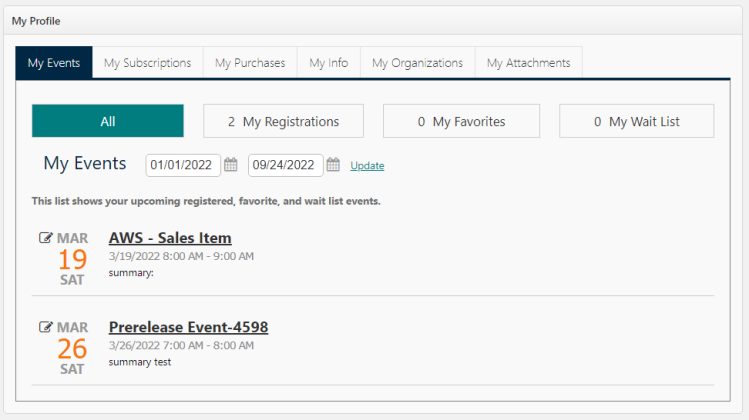
This tab is displayed by default when the My Profile page is opened. This list page displays events that you have registered for, events marked as favorites, and wait list events.
- All events are displayed by default. You can filter the list of events displayed by clicking My Registrations, My Favorites, or My Wait List.
- You can also filter the list by selecting a start and end date to display and click Update to show the results.
- Click on an event title to open that event on the public calendar.
My Subscriptions
This tab allows you to define which email notifications you'd like to receive within Event Manager. You can also manage any existing calendar subscriptions.
- Click on the My Subscriptions tab.
There are subscription settings available for:
-
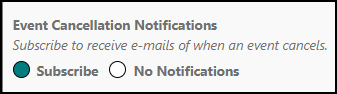
Event Cancellation Notifications: Choose whether or not to receive emails any time an event is cancelled.
-
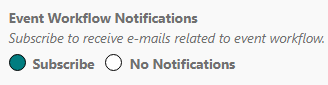
Event Workflow Notifications: Choose whether or not to receive emails that are related to event workflow.
- Order Notifications (All Events): Choose whether to receive emails when an order is submitted for events created by anyone for all sites, specific site(s), or not at all.
- Request to join an Organization: Choose whether or not to receive emails whenever someone requests to join an organization.

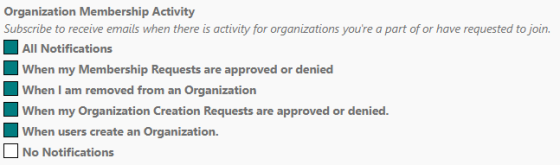
- Organization Membership Activity: Check the boxes for all email notifications you would like to receive about organization activity. These notifications only apply to organizations you are a member of or have requested to join.
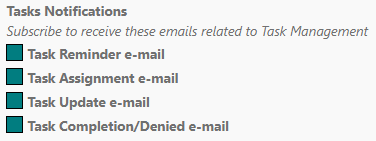
- Tasks Notifications: Check the boxes for all email notifications you would like to receive about Tasks in Event Manager
- Once you have made all necessary changes, click Update.
My Purchases
This tab allows you to view any sale items you have purchased for events.
- Click on the My Purchases tab. A list of your purchases will be displayed.
- Click the down arrow next to an event to view a breakdown of the charges for that event.
- Click on the event name if you would like to view that event from the public calendar.

My Info
This tab displays your personal information, such as name, email, phone number, and address. You can also change your password and receive a subscription token from this tab.
- Click on the My Info tab.
- You can edit your personal information as necessary.
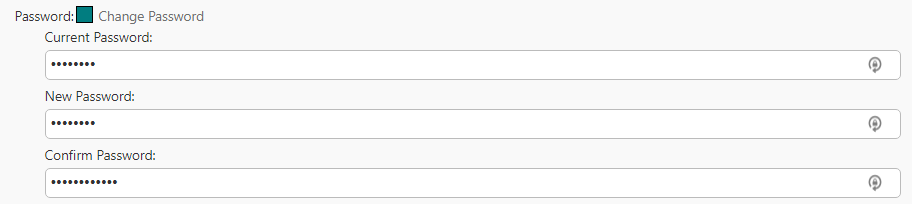
- Check the box next to Password if you'd like to change your password.
- Enter your Current Password.
- Enter your New Password, and then confirm it.
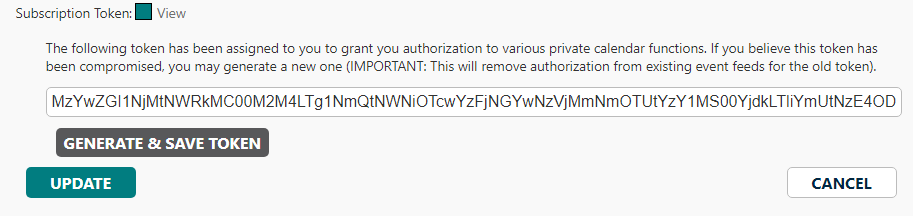
- Check the box next to Subscription Token to generate a token that will allow you to subscribe to private event feeds.
- Click Generate to force generate a new token. *Note: This will remove authorization from existing event feeds for the old token.
- Click Update to save all changes.
My Organizations
This tab displays a list of all organizations you are a member of. You can also create an organization and request to join an organization here.
-
Click on the My Organizations tab.
Request to Join an Organization
- Click the Request to Join an Organization button.
- In the Organization field, enter the name(s) of the Organization(s) that you want to join.
- Click Join Organization to submit your request(s).
- Alternatively, if you are unsure and want to join an organization later on, click I'll do it later.
NOTE Requestors logging on to Event Manger for the first time are also presented this popup which displays the list of public organizations. They can select the organizations that they want to join fro the Organizations dropdown list. If auto approval is enabled, the request is immediately accepted.

NOTE You can also click inside the box and select from the list of public organizations.
NOTE If the tenant administrator has enabled the auto approval option for public organizations, the request is instantly approved. A confirmation message is displayed on the page.
Create an Organization
- Click Create an Organization. This will open the Organization creation form.
NOTE All required fields are indicated with an asterisk.
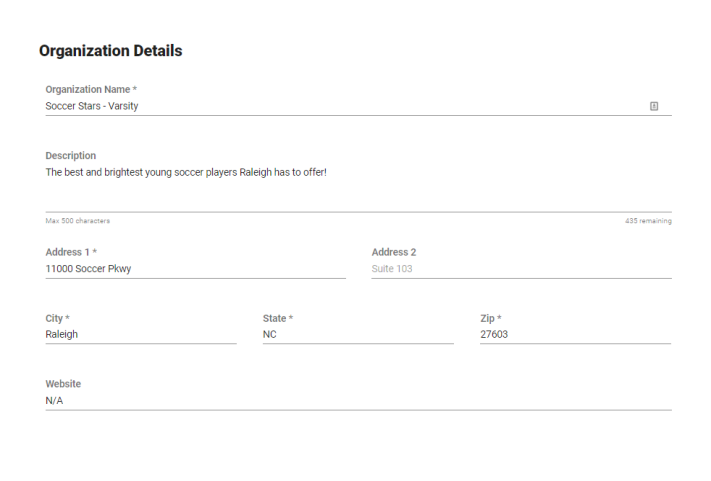
Organization Details
- Enter the Organization Name.
- Enter a Description for the organization.
NOTE Click Update to save any changes.There is a character limit of 500 characters.
- Enter the organization's address information under Address 1, Address 2, City, State, and Zip.
- Enter the organization's Website, if applicable.
Financial Info
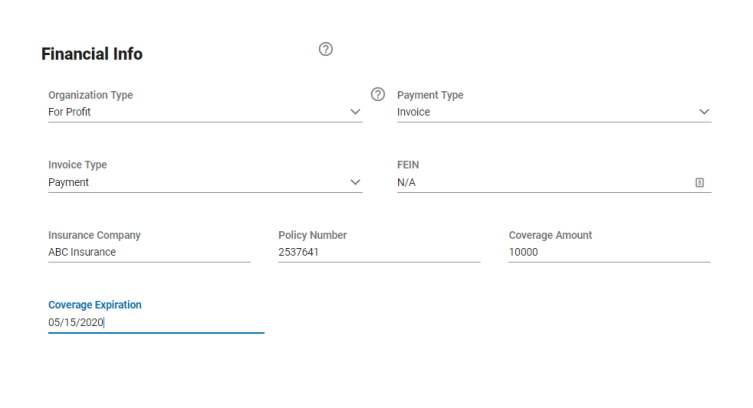
Provide any financial information that is relevant for the organization.
- Select an Organization Type.
- Select the Payment Type.
- Select the Invoice Type.
- Enter the organization's FEIN (Federal Tax ID), if applicable.
- You can enter the organization's insurance information, if relevant, in the Insurance Company, Policy Number, Coverage Amount, and Coverage Expiration fields.
- Click Submit to complete your request.
NOTE Your Organization request will be reviewed and you will receive notification once the request has been approved or denied.
My Attachments
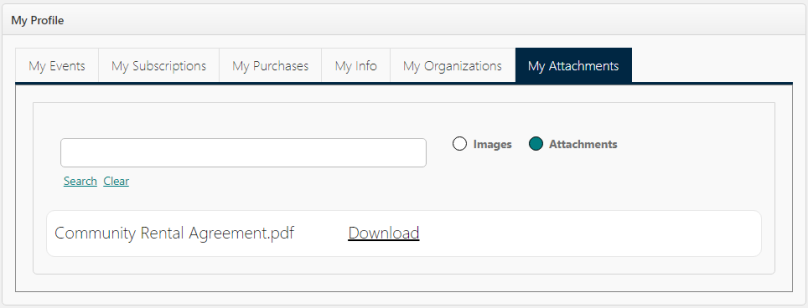
This tab displays a list of all images or attachments you have uploaded to the Community section of the Media Library in Event Manager.
- Click on the My Attachments tab.
- Select Attachments if you would like to view a list of the attachments you have uploaded.
- If necessary, you can filter the list of images or attachments by entering a search term and clicking Search.
- You can Download any images or attachments in the list by clicking the link next to the file.
How To access My Account: [Updated]
-
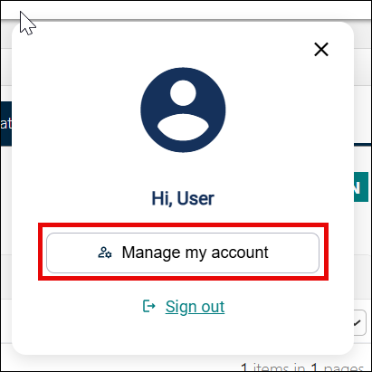
Click the Profile icon from the upper right section of the header.

-
The user profile menu appears on the screen with Manage my account and Sign out buttons.
-
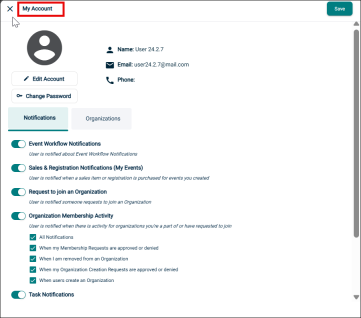
Upon clicking Manage my account button, a side menu with the My Account appears with your account details.
How to Manage Your My Account Page
The My Account page displays your personal details such as, such as name, email, phone number, and address and other tabs like Notification and Organizations.
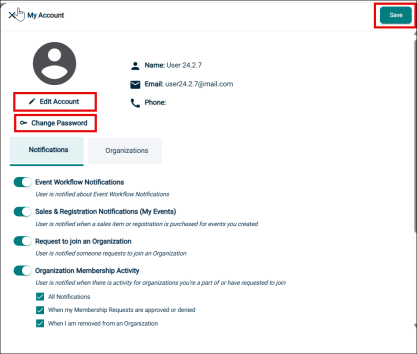
You can edit your account details and change your password from this tab.
Edit account
-
Click on Edit Account button under the profile icon.
-
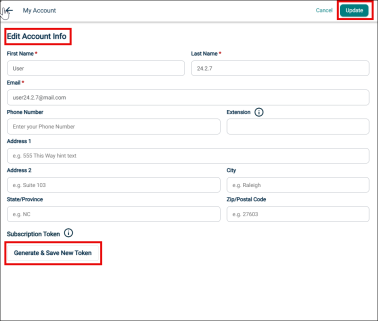
This will open Edit Account Info tab.
-
Make the necessary changes and click Save button from the top right corner.
-
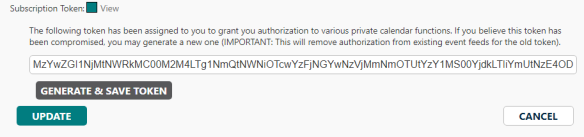
You can also receive a Subscription Token that will allow you to subscribe to private event feeds.
-
Click Generate & Save New Token button to generate a new token.
-
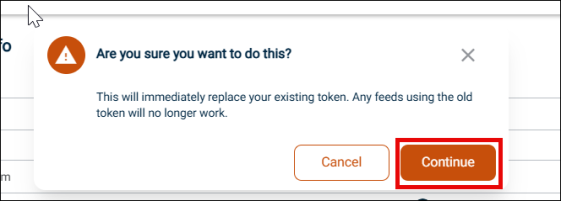
It will give a pop-up asking for confirmation to generate a new token, click Continue.
NOTE This will remove authorization from existing event feeds for the old token.
-
Click Update to save all changes.
Change Password
-
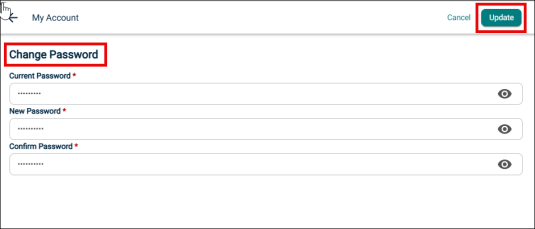
Click the Change Password button if you would like to change your password.
-
Enter your Current Password.
-
Enter your New Password, then re-enter it.
-
-
Click Save to update your password.
Notifications
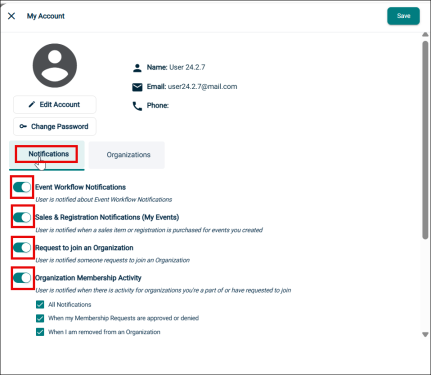
The Notifications tab allows you to manage all email notifications you would like to receive about Tasks in Event Manager.
You can use the toggle button to enable and disable notifications for the following tasks:
-
Even Workflow Notifications
-
Sales & Registration Notifications (My Events)
-
Request to join an Organization
-
Organization membership activity
Organization
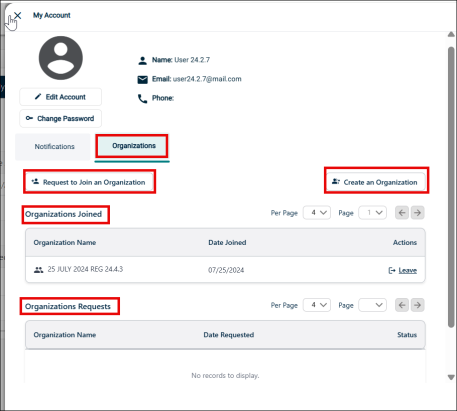
This tab displays a list of all organizations you are a member of. You can also create an organization and request to join an organization here.
Request to Join an Organization
-
Click Request to Join an Organization button.
NOTE Requestors logging on to Event Manger for the first time are also presented this popup which displays the list of public organizations. They can select the organizations that they want to join from the Organizations dropdown list. If auto approval is enabled, the request is immediately accepted.
-
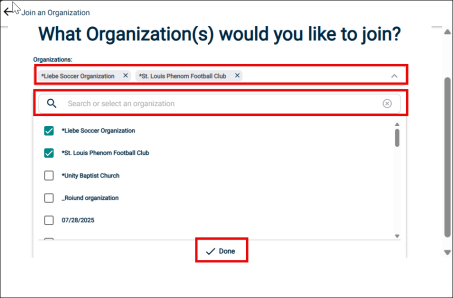
Join an Organization page will open, click the Organizations drop-down.
-
Search and select the organizations you would like to join and click Done.
NOTE You can also click inside the box and select from the list of public organizations.
-
Click Join Organization button to submit your request.
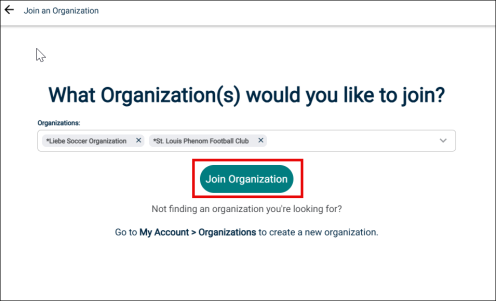
NOTE If the tenant administrator has enabled the auto approval option for public organizations, the request is instantly approved. A confirmation message is displayed on the page.
Create an Organization
-
Click Create an Organization button. This will open the Create an Organization page with organization creation form.
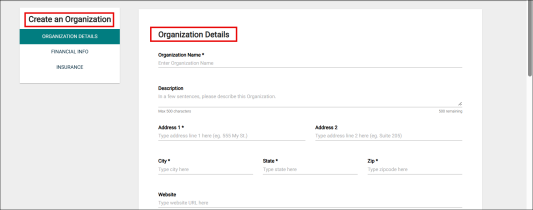
NOTE All required fields are indicated with an asterisk.
Organization Details
-
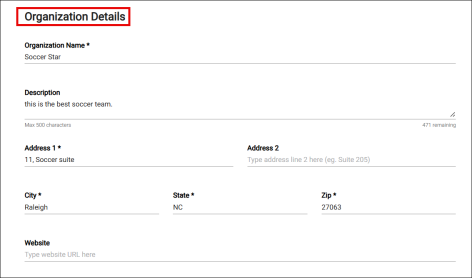
Enter the Organization Name.
-
Enter the Description of the organization.
NOTE There is a character limit of 500 characters for description.
-
Enter the organization's address information under Address 1, Address 2, City, State, and Zip.
-
Enter the organization's Website, if applicable.
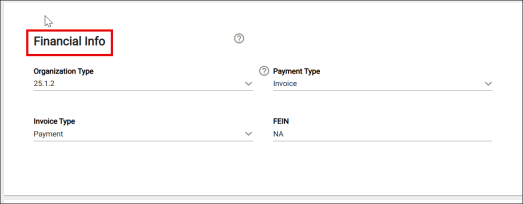
Financial Info
Provide any financial information that is relevant for the organization.
-
Select an Organization Type.
-
Select the Payment Type.
-
Select the Invoice Type.
-
Enter the organization's FEIN (Federal Tax ID), if applicable.
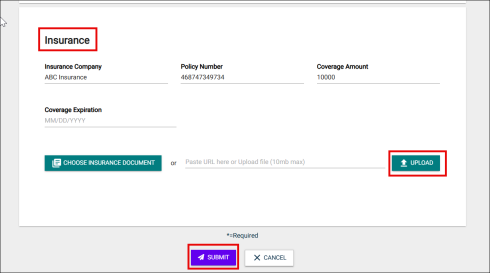
Insurance Info
-
Enter the organization's insurance information, if relevant, in the Insurance Company, Policy Number, Coverage Amount, and Coverage Expiration fields.
-
Click Choose Insurance Document or paste the link for document if you wish to add any.
-
Click Upload to upload the documents if relevant.
-
Click Submit to complete your request.
NOTE Your Organization request will be reviewed and you will receive notification once the request has been approved or denied.
My Purchases
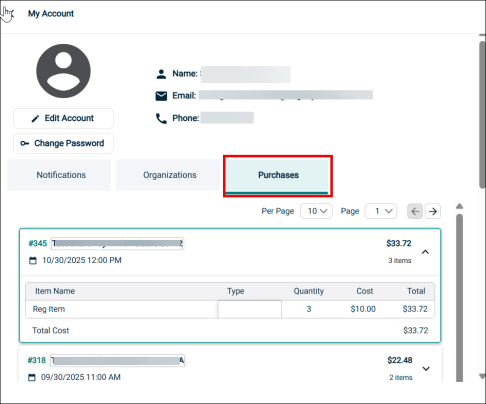
This tab allows you to view and confirm any sale items you have purchased for events in the Purchase section.
-
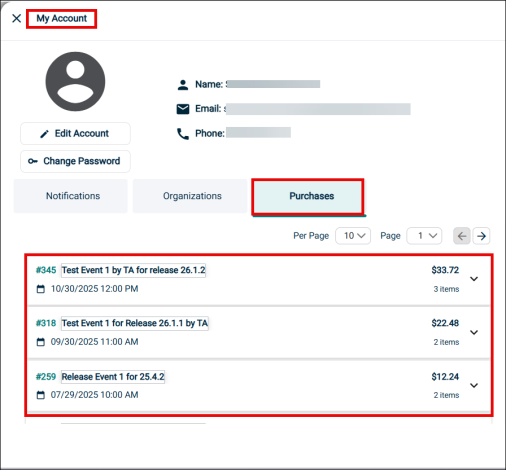
Click on the Purchase tab within the My Account section.
-
A comprehensive list of all your purchases will be displayed.
-
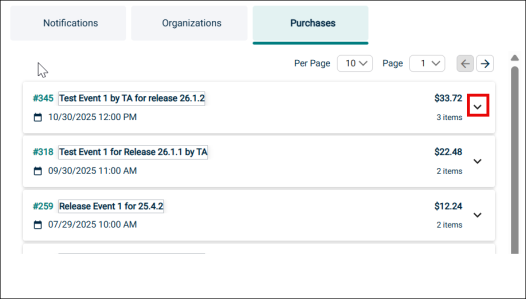
To see a detailed breakdown of charges for a specific event, click the down arrow next to the event.
-
The detailed information including the item name, type, quantity, individual cost, and total price will be displayed for each purchase.
-
You can also click on the event number to view the event in the public calendar.
-
You can also use pagination to choose how many items appear per page and easily navigate between pages using the drop-downs and arrows.
My Attachments
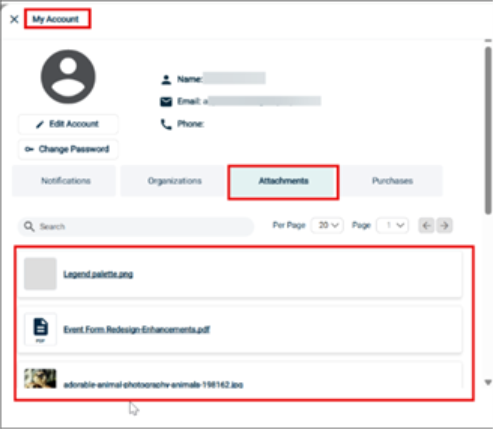
This tab displays a list of all images or attachments you have uploaded to the Community section in Event Manager.
-
Click on the Attachments tab within the My Account section.
-
All the attached files including images and general attachments will be listed.
-
Click on the attachment you would like to view. It will open the file/image in a new tab.
-
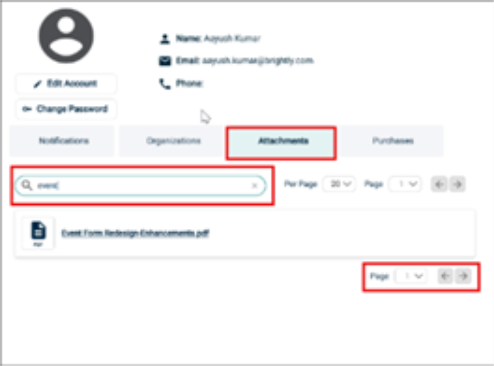
You can also filter the list of attachments using the Search bar.
-
Type the name in the Search bar and hit Enter, the attachment will get filter out from the list.
-
You can also control the number of entries to be displayed in a page and number of pages using the Pagination option present in the tab.