Configure Origin-AE Integration
Steps to Configure AE-Origin Sync
Example: PM Schedule Creation in AE
Organizations leveraging Origin for asset planning and budgeting, alongside Asset Essentials (AE) for maintenance execution, often encounter challenges in synchronizing preventive maintenance schedules across both platforms. The AE-Origin integration aims to resolve these inefficiencies by allowing organizations to streamline asset maintenance by synchronizing preventive maintenance schedules and asset and work order data between Origin and Asset Essentials (AE).
Through this integration, preventive maintenance schedules can be sent from Origin directly to AE, and asset and work order data from AE can be shared back with Origin. This two-way integration keeps assets synchronized between Origin and AE using asset data, ensures asset health scores are always up to date through work orders, and enables seamless creation of maintenance plans using preventive maintenance schedules.
Prerequisites
To configure AE Origin Integration, you must select Asset Essentials as CMMS Name while setting up the Organization in Settings.
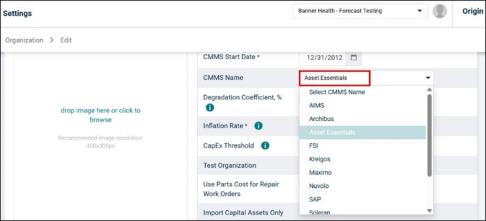
Steps to Configure AE-Origin Sync
Once the CMMS Name is selected, the next step is to configure the CMMS Integration.
-
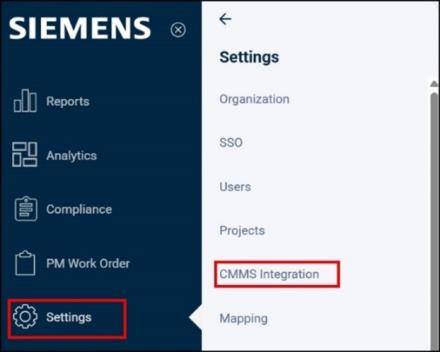
Go to Settings > CMMS Integration.
-
Click on + New button.
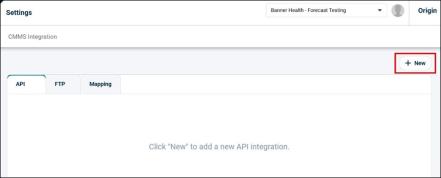
The “Create AE Sync” pop-up window appears. This form will only appear for the first time when you are configuring AE Sync, after that a simple form for the other CMMS configuration will appear.
-
In the Create AE Sync pop-up window, there are 3 Wizard steps.
-
General Info:
-
PM Schedule:
-
Load Initial Data:
-
General Info
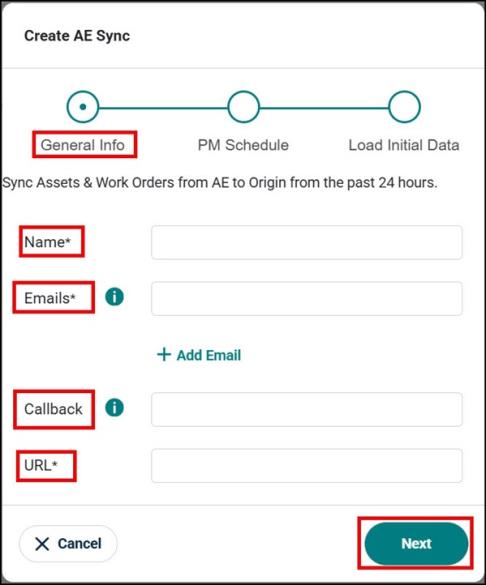
General Info helps in syncing Assets & Work Orders from AE to Origin based on the past 24 hours.
-
Name: Enter the full name or username of the user. Name must be unique, if duplicate, it displays, “API Name already existed. Please choose another name.”
-
Emails: Enter your email address. It is mandatory for sync statuses of Assets, Work Orders and PM Schedules and error logs, etc.
-
+Add Email: Allows adding multiple email addresses for the same user.
-
Callback: A URL or endpoint that the system will call after a specific action is completed.
-
URL: Enter a web address or endpoint associated with the user or service. The URL must start with “http://” or https://
-
Click Next.
PM Schedule
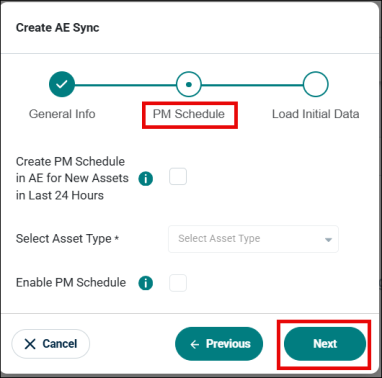
PM schedule helps in PM schedule creation of newly created assets in the last 24 hours in AE.
-
Create PM Schedule in AE for New Assets in Last 24 Hours Checkbox:
-
If the checkbox is not selected, then the PM schedules are not created in AE.
-
If you do not want to create PM schedules in AE, then just select Next and continue in the next tab.
-
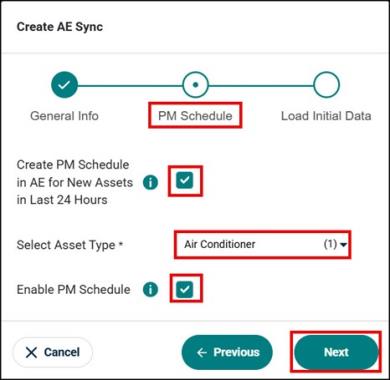
If the checkbox is selected, it will automatically create a PM (Preventive Maintenance) Schedule from Origin to AE for any new assets added in the last 24 hours.
-
-
Select the checkbox for the Create PM Schedule in AE for New Assets in Last 24 Hours. Other fields get enabled.
-
Select Asset Type (Required) from the dropdown menu. You can select multiple asset type.
-
Check the box Enable PM Schedule.
This checkbox controls whether the PM (Preventive Maintenance) schedule transferred from Origin to Asset Essentials (AE) will actively generate work orders.
-
If Checked: The PM schedule is created in AE and will automatically generate work orders according to the schedule.
-
If Unchecked: The PM schedule is created in AE but remains inactive — it will not generate any work orders until this setting is enabled.
NOTE If you want work orders to be generated immediately upon transfer, ensure the Enable PM Schedule checkbox is selected before completing the integration setup.
-
-
Click Next.
Load Initial Data
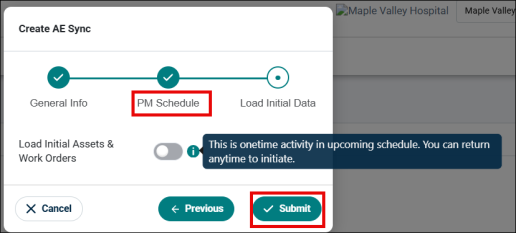
It is a one-time process of initial load of assets/work orders and optional PM schedules for the selected date. This helps in fetching the asset data and work order from AE for a particular time period in the upcoming cron job.
-
If you do not want to initiate this, you can directly click Submit button. However, you can come anytime and initiate this activity.
-
If you wish to initiate the activity, enable the toggle switch to Load Initial Assets & Work Orders, other fields will also be visible.
-
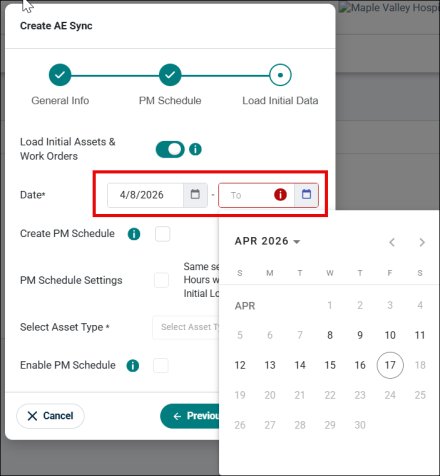
Select a start date and an end date for loading initial data (Required).
NOTE Start Date cannot be in the future and end date cannot be before start date, but they can be the same day.
-
Check the box Create PM Schedule to create a PM schedule from Origin to AE. Enabling this will enable the other options.
-
Check the box PM Schedule Settings if you want to apply the same settings to the Initial Load as you had set for the last 24 hours.
-
Select the Asset Type (Required) from the dropdown menu.
NOTE If you check the PM Schedule Settings, this field will be populated automatically and display the previously selected asset type.
-
Enable PM Schedule will be enabled automatically once you check the PM Schedule Settings. This allows you to create a PM Schedule automatically in AE.
-
Click Submit.
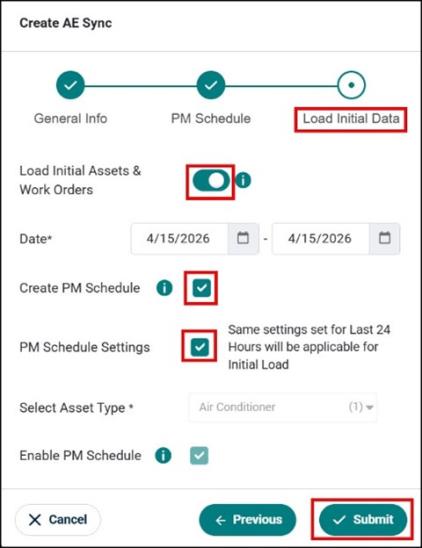
Once you submit the form, the AE to Origin Integration will be set up. Any assets & WO added or updated in the last 24 hours will be fetched from AE to Origin.
If you have also configured Load Initial Data, then based on the Start and End date, the new/updated assets and Work Order are also fetched from AE to Origin.
The Cron job is scheduled at 1:30 PM IST for Assets and 2:30 PM IST for Work Orders. For any new assets created in Origin from AE in a Cron job, PM schedules are also created in AE at the same time.
Edit the Configuration
-
To edit the configuration, click the Edit button at the bottom.
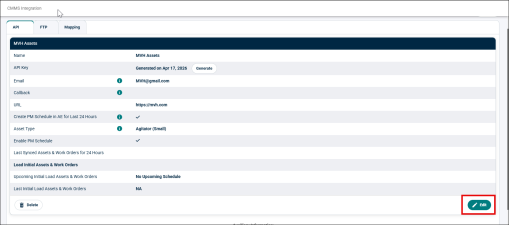
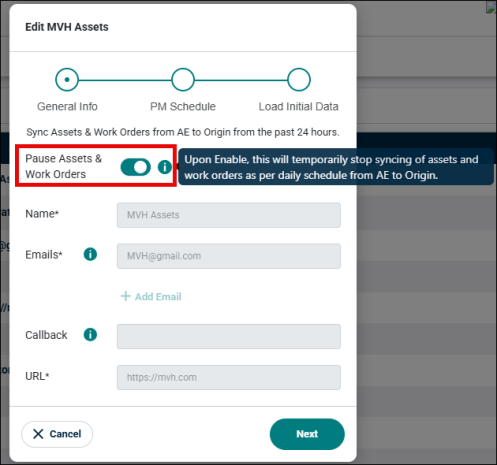
When you are editing any configuration, you also have an option to temporarily stop the sync from AE to Origin.
-
Enable the Pause Assets and Work Orders toggle to stop the sync.
NOTE When you click the Pause button, the Assets, Work Orders and PM Schedule sync will stop, and you will need to come back to enable it for 24 hours. You can come anytime to pause the 24 hour and initial load data sync before the Cron job, however, you cannot pause it when the Cron job is running, it will throw an error it you do so.
-
Click the Submit button once you are done with all the changes.
Delete the Configuration
-
To delete the configuration, click the Delete button.
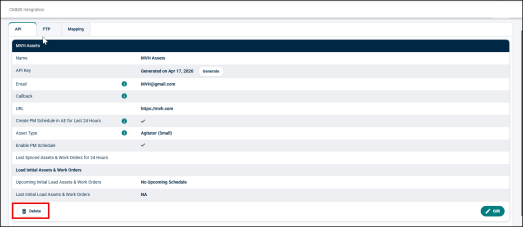
-
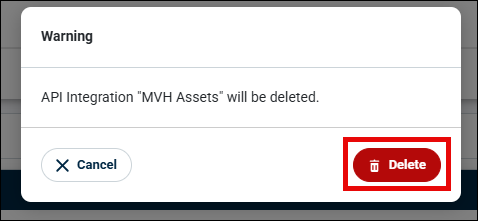
A warning message will appear on the screen, click Delete again.
-
The configuration will get deleted successfully.
NOTE AE to Origin sync for assets and work order data and Origin to AE sync for PM will also stop upon deleting the configuration.
PM Schedule Creation in AE
PM schedules in AE are created in batches and based on Asset Types and maintenance frequency available in Origin.
Batch Processing
-
PM schedules in AE are created in batches of 100 assets.
-
PM schedule creation is based on Asset Type and Maintenance Frequency.
-
Asset Type Example- Air Conditioner with Monthly and Half-yearly maintenance frequencies.
-
PM Schedule Frequencies- For each asset type, PM schedules can be set up with the following frequencies:
-
Daily
-
Weekly
-
Monthly
-
Quarterly (Once every 3 months)
-
Semi-Annually (Once every 6 months)
-
Yearly
-
-
Example: PM Schedule Creation in AE
Suppose there are 300 assets of a particular Asset Type (e.g., Air Conditioner) and they require both Daily and Yearly PM schedules.
-
PM schedules will be created in batches of 100.
-
For each frequency, 3 separate PM schedules will be generated:
-
Daily Frequency:
-
Batch 1: 100 Assets for Daily PM Schedule
-
Batch 2: 100 Assets for Daily PM Schedule
-
Batch 3: 100 Assets for Daily PM Schedule
-
-
Yearly Frequency:
-
Batch 1: 100 Assets for Yearly PM Schedule
-
Batch 2: 100 Assets for Yearly PM Schedule
-
Batch 3: 100 Assets for Yearly PM Schedule
-
