Back to Asset Essentials Main Menu
Asset Essentials FAQs
Below are some common questions we receive about Asset Essentials. Click on the questions for more information, troubleshooting instructions, and best practices. You can also view a glossary of terms commonly used throughout Asset Essentials.
Account Setup FAQs
 What is the difference between a Site and Location?
Locations are places within Sites. For example, if the state of North Carolina is a site, the manufacturing plants located in that state will be listed as locations. It is important to work directly with your implementation specialist when configuring your account to ensure that your Site and Location setup will streamline your processes in Asset Essentials.
What is the difference between a Cost Center and a Budget?
A cost center is the bucket where money spent is distributed from and attributed to. A budget determines the amount of money available to each cost center. A cost center may be tied to multiple budgets. For example, a production line may be a cost center that is tied to a Maintenance budget and an Operating budget.
Can I import data into my account?
Outside of your initial implementation, importing is only available for Asset Essentials Enterprise clients or through the use of virtual consulting. If you are an Asset Essentials Enterprise client, you can view a list of what data can be imported and instructions on how to do so.
How can I maximize the use of the Document Library?
Keeping the folder structure well organized within the Document Library is essential to increasing efficiency when searching for specific documents. We also recommend using URLs to link to user manuals or images, if available, instead of uploading the document directly to the library because there is a 20MB limit to files that can be uploaded.
Display FAQs
Why does my dashboard look different than my coworker's dashboard?
Your dashboard can be customized to display items that are relevant to your day-to-day use of Asset Essentials. Learn more about customizing your dashboard.
Why can I not see all of my assigned work orders?
You have the ability to customize the work orders summary page for your account. Ensure that the view you have enabled is configured to display all work orders relevant to your operations. Learn more about how to manage, search, and customize your summary views.
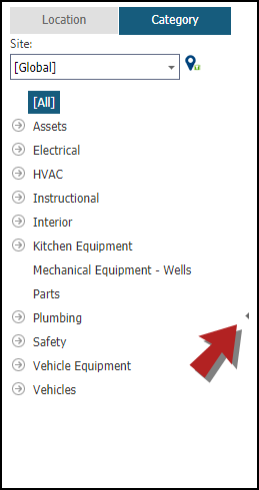
How do I condense the location hierarchy tree or the category hierarchy tree on the left side of the page?
Half way down the section of the page that displays the tree, there is a small arrow. Clicking this arrow will collapse the view and display the summary page across the entire screen.
Is there a way to put the page count at the top of my work order summary page?
Yes! You can adjust this custom setting to display the page count at the top of all summary pages throughout Asset Essentials.
- Click Profile in the top right corner of the page.
- Select My Profile.
- Navigate to the Custom Settings section.
- In the Pager Position drop-down menu, select either Bottom, Top, or Top and Bottom.
- Click Save.
How can I add or remove the icons from the summary views in my account?
- Click Profile in the top right corner of the page.
- Select My Profile.
- Navigate to the Custom Settings section.
- In the Summary Screen View Icon drop-down menu, select either Shortcut Icons to view the icons or Context Menu to view options by right-clicking on a record.
- Click Save.
Can I increase the number of records that will display on each page in my account?
Yes! You can set the number of records that will display on any summary page to a number between 2 and 100.
- Click Profile in the top right corner of the page.
- Select My Profile.
- Navigate to the Custom Settings section.
- Update the value in the Items Per Page field.
- Click Save.
User Email FAQs
Are there any email addresses and IP ranges my IT Department should add to their allow list?
Yes, you can view the email addresses and IP ranges that need to be allowed.
When will a work order trigger an email notification to be sent?
Email notifications are sent out based on the status the work order is changed to. These notifications are configured during implementation. If you are an Asset Essentials user and need to update the notifications that are being sent to recipients, please reach out to Client Services for assistance. If you are a Global Administrator using Asset Essentials Enterprise, you can configure the email templates through the WO Statuses page.
Work Order FAQs
Can a work order be assigned to more than one person?
Yes! When creating or assigning a work order, you have the ability to assign the work order to multiple users.
- In the Assigned To section of the work order, click Add User.
- Check the box beside any assignee(s) and click Select to assign the work order.
Can I make Labor Transactions a required field for my Technicians?
While you can’t make labor required for a specific user role, you can make labor required in order for a work order to progress to another status, such as Complete. If you are an Asset Essentials user and would like to enable this feature, please reach out to Client Services for assistance. If you are a Global Administrator using Asset Essentials Enterprise, you may utilize the Rule Expression feature. When editing your WO Statuses, the Rule Expression field accepts the Boolean data type. Our Client Services team can assist you in setting this up if you need further assistance.
Can I change the format of the printed work order form?
There are different options available for printing a work order. Prior to clicking the Print icon at the top of a work order, you can use the drop-down menu directly beside the print icon to select a format for the printed work order.
Can you update more than one work order at a time?
Yes! Learn more about batch updating work orders.
Why aren't my PM Schedules generating?
There are several reasons why your PM Schedules may not be generating work orders:
- Adding a Site Closure will prevent PMs from generating when a site is closed.
- Adding a PM Exclusion will prevent PMs from generating during a specific amount of time.
- In the General section of the PM, check for the following:
- The Enabled box must be checked in order for the PM to generate.
- The Time for Work Order Creation lists when the work order will generate next. The PM will generate at this time.
- In the Schedule section of the PM, check for the following:
- Ensure that the PM Schedule recurrence is set for the correct pattern.
- The PM will only generate between the Start and End dates listed.
- If this is a seasonal PM, it will only generate between the Season Start and Season End dates.
- Check to see if the previously generated work orders have been completed. If the Don't create WO unless all the prior ones from the following PMs have been completed option has been selected in the Schedule section, a new work order will not generate until the previous work orders have been completed.
- If this PM is part of a Stacking Group, the PM may have generated as part of another PM in the same stacking group.
- Each PM is tied to a Source, such as Asset. The status of that source may have the PM Generation is Disabled box checked, which would prevent a PM from generating.
- If this is a Meter Based PM, ensure that current meter readings have been entered into Asset Essentials to properly trigger the PM generation.
Reporting FAQs
I am trying to print a report, but my report isn't showing on the screen.
Most likely, there is a pop-up blocker on your browser that is preventing the report window from opening on your screen. Check with your IT Department for assistance in resolving this issue.
I run the same report every week. Is there any way to save this information to make it easier to run?
Absolutely! Saving reports in Asset Essentials can help with this. You can save frequently used reports to run quickly and easily in the future. You can even schedule it to run on a recurring basis and email you the results. Learn more about saving reports.
Performance Issues
What do I do if I am experiencing performance issues?
We recommend following our troubleshooting guidelines if you are experiencing slow performance.
AI for Asset Essentials Enterprise FAQs
1. What is happening and when?
The AI capabilities in Asset Essentials Enterprise are being rolled out in a phased, progressive release beginning May 19, 2026.
2. How is access communicated?
You will know when your account has been enabled through:
• An in-app notification
• A direct email notification from Brightly Software
These notifications are sent when your feature is activated.
3. What is included at launch?
Once enabled, eligible clients will have access to three AI capabilities:
• Copilot
• AI Auto Summarization
• Duplicate Work Order Detection
These features are included as part of the Asset Essentials Enterprise subscription for eligible clients during this rollout.
4. What control and governance is available to clients?
Organizations maintain full control—Global Admins can disable AI features at any time.
5. Are these AI features included in my current plan, or are they an add-on?
These AI features are included with the Asset Essentials Enterprise subscription. There is no add-on purchase required for access during this rollout.
6. What support and enablement will Brightly provide during rollout?
During rollout, clients can contact Brightly support through: assetessentialshelp@brightlysoftware.com
Available resources:
-
Help Site
-
Release Notes
7. Where can we submit feedback or feature requests?
Feedback should follow existing channels used today such as the idea portal (located within the app under Resources) or connecting with our support team (assetessentialshelp@brightlysoftware.com). Brightly will review feedback during rollout to determine future feature developments.
8. How can we determine if we have access to an enterprise asset essentials subscription?
The most reliable confirmation is your subscription tier as stated in your contract or order form. Your Brightly contacts will also notify eligible accounts as enablement occurs.
9. Can we opt out and still use asset essentials without AI?
Yes. You can keep using Asset Essentials without AI. AI features are not enabled by default (turned off) and will not be visible until turned on. Your non AI experience continues normally.
If AI features are used and later disabled by the Global Admins, the setting toggles for the AI features will be hidden from non-admin users. Any work done with the AI features previously (closed duplicate work orders, Copilot responses copied into Work Orders, etc.) will remain visible in the application.
10. What if we Enable AI later on?
You can enable AI at any time. If the Global Admin does not see the AI feature toggle in the System Settings, reach out to assetessentialshelp@brightlysoftware.com for support.
11. What happens if we cannot accept AI terms?
If you do not accept the AI Terms, the AI feature will remain off. You will not have access to the AI features, nor will the AI functionality interact with your account, but you will continue to receive all non-AI updates and existing functionality within Asset Essentials.
12. What is the process to turn on the AI features?
A Global Admin can enable/disable AI features at the account level (not per user): Configurations → Misc → System Settings → AI Features.
From there, you can toggle each AI feature individually or disable the entire AI feature set. If AI is disabled, the toggles are hidden; anything created/changed using AI previously remains intact (e.g., closed duplicates, text copied into work orders).
13. Will AI features be available immediately after turning on?
Once your account has been enabled for AI (your account receives the underlying AI capability flag), a Global Admin can turn features on in System Settings and they become available in product experience. For accounts with a large volume of historical asset documents, Brightly performs an initial document indexing/migration so manuals can be referenced—this can take up to ~1 day for the initial sync.
14. Can we control which users can access AI (or restrict it entirely)?
AI controls are account-wide: enabling/disabling affects the entire account, not individual users. You can restrict AI entirely by turning off all AI features.
15. What data sources does the AI use?
AI outputs are generated using data from your account only: work order history, asset information, parts information, and documentation uploaded/attached to assets. Anything stored in Asset Essentials that is attached to assets/work orders may be used to generate AI responses, so if there is information you don’t want included, remove it from Asset Essentials before using AI features.
16. Is customer data shared with third parties or other clients?
No. Information is being referenced locally on a per-account basis.
17. Is any data used to train AI models (now or in the future)?
This model is not being trained or fed any data from AE. Data is being stored on a per session basis, and therefore will not be able to recall previous conversations outside of a current session
18. How accurate are AI outputs? Can AI generate incorrect results (“hallucinations”)?
All AI-generated information is at risk for mistakes. The generated information is meant to advise and should always be reviewed by appropriate and relevant team members. The model is set to only provide known information based on its available data rather than make assumptions. For example, if you ask the AI feature for the weather today, there is no data input for weather, and it will state that it does not know.
19. Is AI output advisory only?
Yes—AI outputs are advisory and should be validated by your team before acting on them.
20. Are there guardrails for sensitive information?
A key guardrail is data control: the AI draws from content stored in your Asset Essentials account that is attached to assets/work orders. If there is sensitive information you do not want used to generate AI responses, remove it from Asset Essentials before using AI features; you can also disable AI at any time.
21. How long are AI inputs/outputs retained?
AI conversations are stored per session, and the AI does not recall previous conversations outside the current session. Any changes made to your data by a user in the system after referencing the AI outputs will be retained.
