Login Page and Dashboard Overview
-
You will receive an email with a link to set your password for the Transportation Manager.
-
Go to the Transportation Manager login page.
-
Enter your email address and password.
-
Click Continue.
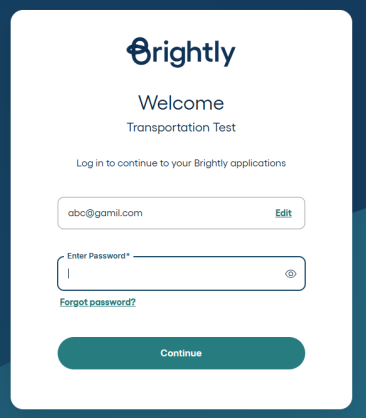
Upon successful login, the Transportation Dashboard is displayed.
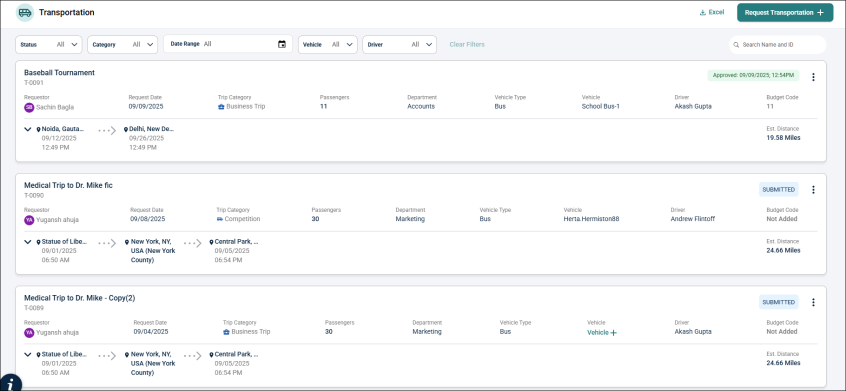
The Transportation dashboard for administrator displays list of trip requests, filters and user profile section.
NOTE The Administrator Dashboard displays all the trip requests, including Submitted, Approved and Declined.
Forgot Password
If you have forgotten your password:
-
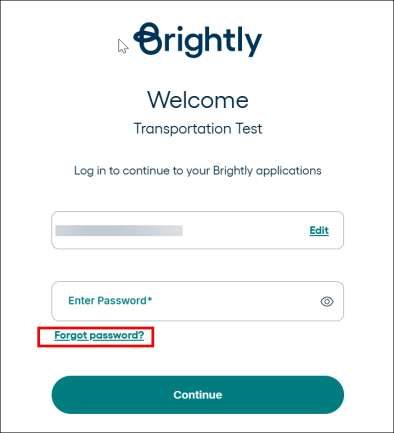
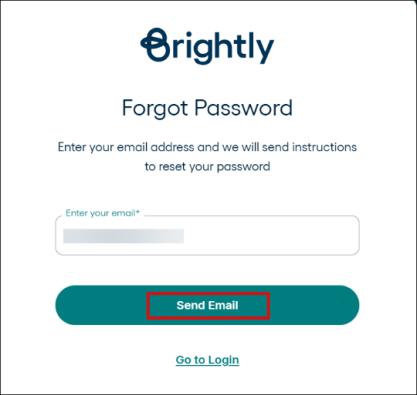
Click the Forgot Password option on the Login Page.
-
Enter your email address and click Send Link.
-
Check your email for a password reset link.
-
Click the link and set a new password.
Manage My Account
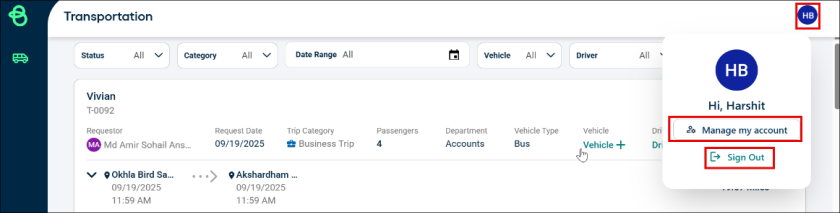
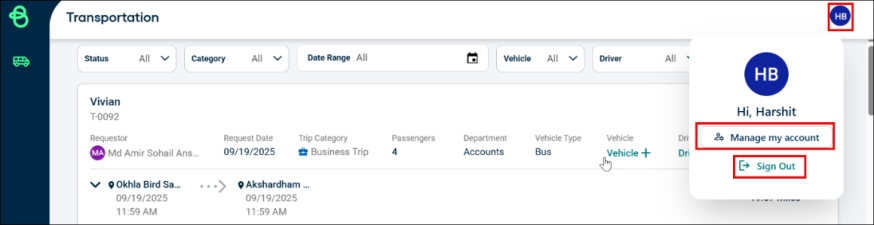
Under the User Profile option on the top right corner of the screen, you will find Manage my account and Sign Out option.
-
Click the Manage my account option.
-
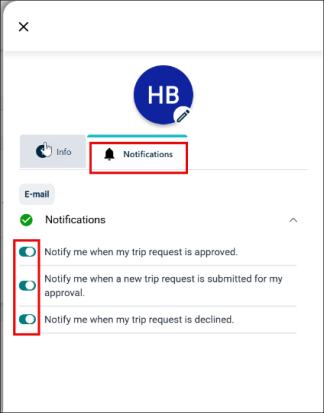
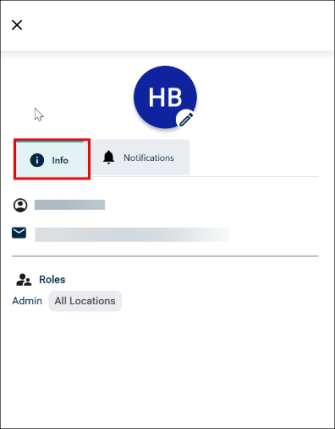
You can change your Profile picture and check the details under Info and Notification tab.
-
Info tab has your name, email address and Role information.
-
Notification tab has toggle for all email notifications, including:
-
Notification for trip request approval.
-
Notify me for a new trip request submitted for approval.
-
Notify me for trip request decline.
-