Entering a Trip Request
Creating a trip request is a simple three-step process: enter your trip details, add contact information, and specify your journey details. Once submitted, you will have a trip card that displays all key details, from the number of passengers to your route information.
To Enter a Trip Request
-
Click on the Request Transportation button.

-
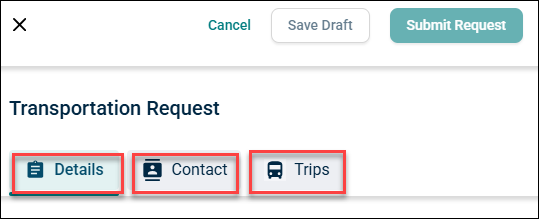
A new pop-up window appears, divided into three sections:
-
Details
-
Contact
-
Trips
-
Details
In the Details section, enter the following information:
-
Trip Name
-
Trip Category
-
Department
-
Number Of Passengers
-
Vehicle Type
-
Budget Code
-
Notes
-
Add Attachment
After entering all the Details, click Add Contact at the bottom or click the Contact tab to access the section.
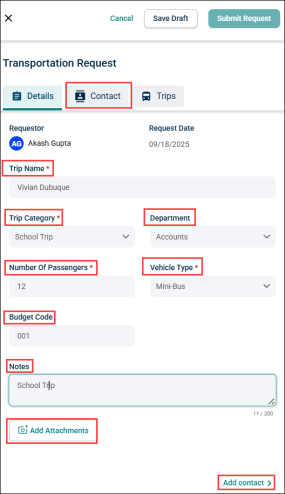
NOTE Users can save progress at any time by clicking Save Draft.
Contact
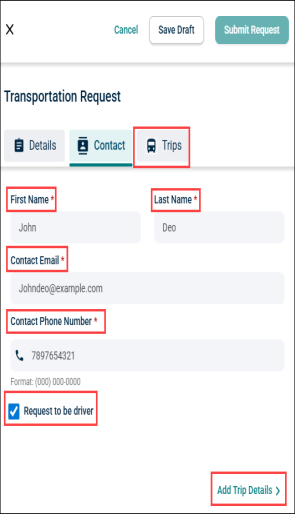
In the Contact section, enter the following information:
-
First Name
-
Last Name
-
Contact Email
-
Contact Phone Number
-
Request to be driver: Check this box if you want the requester to be a driver.
After entering all the details of the Contact, click Add Trip Details at the bottom or click the Trips tab to access the section.
Trips
You can enter Trips in two ways:
-
Round Trip
-
Recurring Trip
Round Trip
In a Round Trip, your departure and arrival location will be the same.
Perform the below steps to create a Round Trip:
-
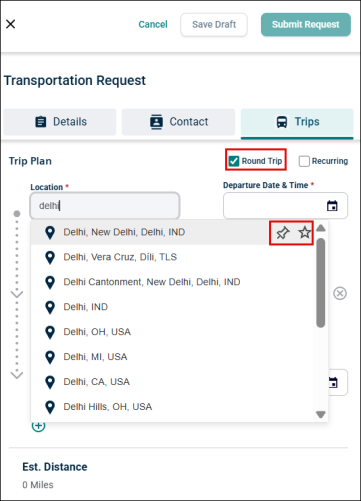
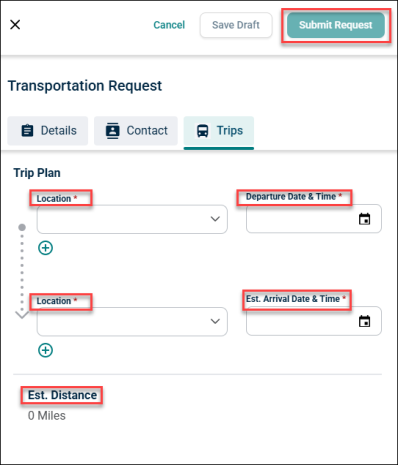
Location:
-
Start typing the location and select the matching result from the drop-down list.
NOTE Hover over a location in the suggestions list to see two icons:
 Icon: Marks the location as a favourite, which will then appear at the top of your suggestions for quick access.
 Icon: Sets the location as the default, so it will be pre-populated the next time you create a trip request.
-
By default, the trip plan is a Round Trip. To make it a one way trip:
-
Remove the Round Trip checkbox.
-
The arrival location will be auto-filled to match the departure location.
-
-
Departure Date & Time: Select start date and time and click Done.
-
Est. Arrival Date & Time: Select estimated arrival date and time and click Done.
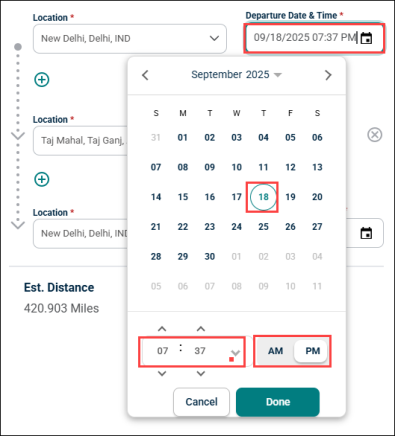
NOTE Please ensure that the arrival time is not earlier than the departure time.
-
Est. Distance: Tool will automatically calculate the distance based on the starting and destination location.
-
Click Submit Request.
Recurring Trip
A Recurring Trip is one that occurs on a regular basis.
Perform the below steps to create a Recurring Trip:
-
Follow the same steps as mentioned above for a Round Trip until you reach the Submit Request step.
NOTE You can create a Recurring Trip with or without Round Trip.
-
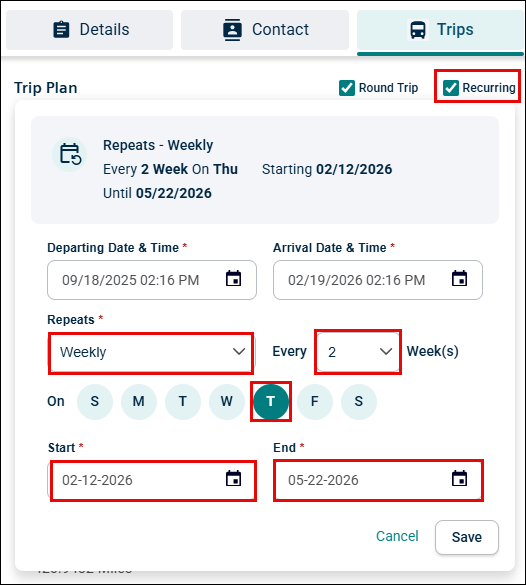
Select Recurring checkbox.
-
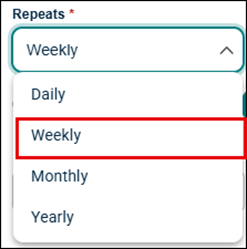
Click Repeats drop-down list to set how often the trip repeats (Daily, Weekly, Monthly, Yearly).
-
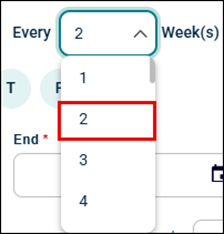
Click Every drop-down list to set the interval for the recurring trip.
-
Select the day you want to occur the trip.

-
The Start date is auto-filled but can be modified.
-
Click End field to set the date when the recurring trip should end.

-
Click Save.
-
Click Submit Request Button.
Once submitted, the recurring trip series changes to Needs Approval status and an email notification is sent to the approver for a quick approval.
The Trip request and all provided information will appear under the Request /ALL Trips tab as individual trip card.

Each trip request card provides key information, including:
-
Trip name and ID
-
Requestor details
-
Request date and trip category
-
Number of passengers and department
-
Vehicle type, assigned vehicle, and driver
-
Budget code, estimated distance, and trip status (e.g., Approved, Submitted)
-
Route details, including pickup and drop-off locations and dates/times.
Duplicate a Trip Request
-
Click a vertical three dots icon of a trip request and select Duplicate option.

Transportation Request page appears.
-
Edit the details as required and click Submit Request button to submit the duplicate trip request.
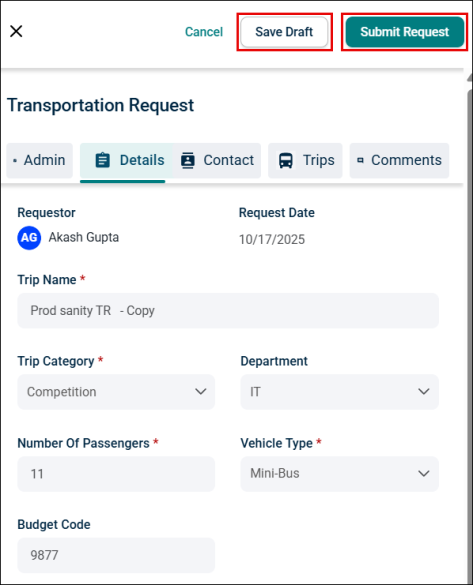
Duplicated Trip request appears in the trip request list.

-
Alternatively, click Save Draft to save changes without submitting for non-recurring trips. The request will appear in the trip request list with a Draft tag.

-
To delete a Draft Transportation Request, click
 and select Delete.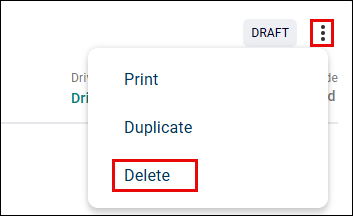
NOTE Only Admins and Requesters can delete the Draft Transportation Requests.
Trip Modification
Both Admins and Requesters can modify the existing trip requests.
To Modify a Trip Request:
-
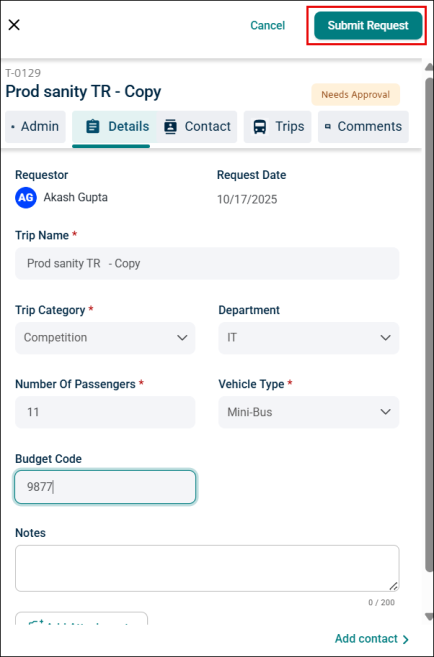
Click a trip request card from the trip list.

-
Edit the details as required and click Submit Request Button to submit the modified trip request.
-
Once submitted the trip request appears in the trip list.

