Edit a Recurring Trip Request After Approval
Once an admin approves a recurring trip request, the original (parent) trip request is removed from the Requests tab. Individual (child) trip instances are automatically generated based on the selected frequency such as daily, weekly, monthly, or yearly when creating the recurring series. These now appear in the All-Trips tab.
-
Each child trip instance displays the complete trip details, including the specific dates for each occurrence.
-
The naming convention for child trips is as follows: for a trip numbered "Trip XXX," the instances will be labelled "Trip XXX-001," "Trip XXX-002," and so on.
Requester can edit the complete series or can choose to edit a single instance as per the requirement even after approval.
Edit Complete Recurring Series
-
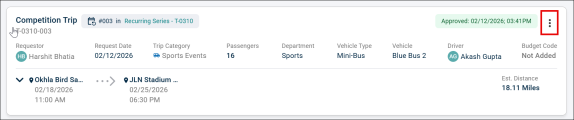
Click on the three dots menu on any approved card trip.
-
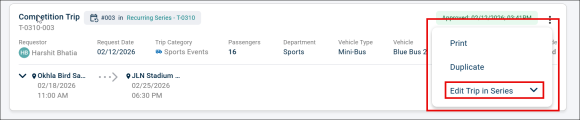
A new menu will open, select the Edit Trip in Series dropdown.
-
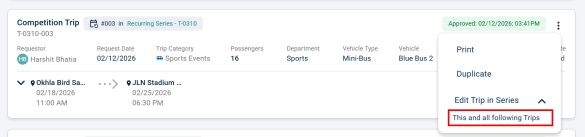
Choose This and all following Trips from the dropdown that opened.
-
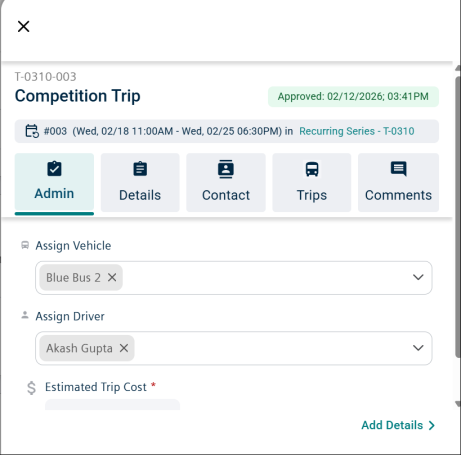
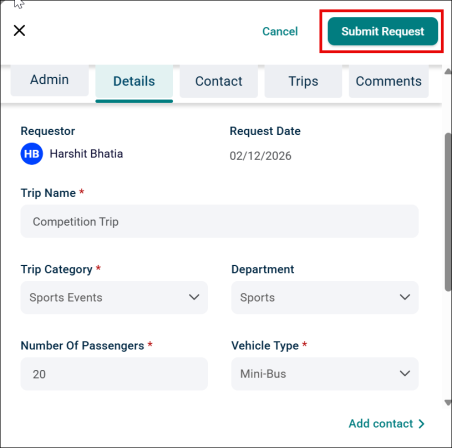
A trip details side panel will open; make any required changes.
-
Click the Submit Request button.
-
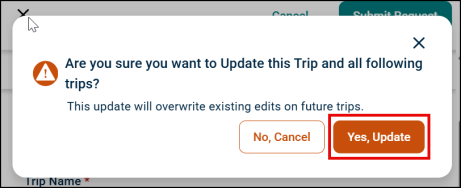
A pop-up message will appear asking for confirmation, click Yes, Update.
-
All instances of the trip requests will be updated.
-
If your changes are considered impactful, the updated trip requests will require approval again. If your changes are non-impactful, the trips remain approved.
Refer to the list of Impactful/ Non impactful changes here.
Edit Single Instance of a Recurring Series
-
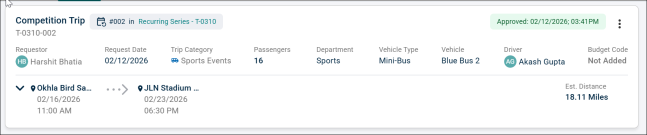
Click anywhere on the trip card for the trip instance you wish to edit.
-
The trip details side panel will open.
-
Make the required changes and click Submit Request button.
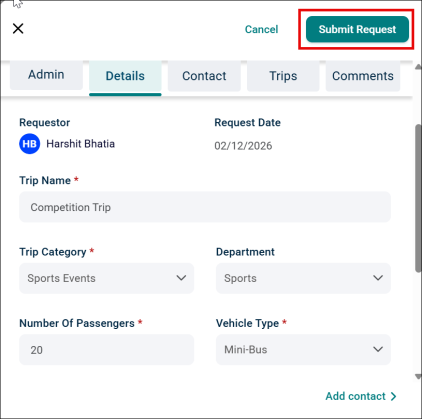
The trip request instance will get updated successfully.
-
If the changes are non-impactful, no additional approval is needed.
-
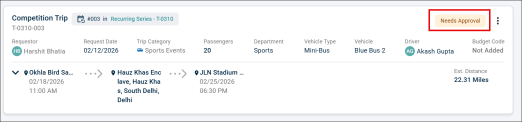
If the changes are impactful, the request will be sent for approval again, and the trip card will display a Needs Approval status.
Cancel a Child Occurrence or Stand-Alone (Non-Recurring) Trip
Admin can cancel stand-alone (non-recurring trip) and child Occurrences in a recurring trip series that are in Needs Approval status without affecting approved schedules or rest of the parent series.
To cancel a Trip:
-
Click the ellipsis
 icon.
icon. -
Select Cancel This Trip option.

-
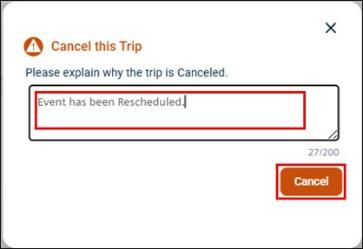
A pop-up window appears, enter the reason for cancellation and click Cancel.
A confirmation message appears at the top of the page.

-
The Trip request is successfully cancelled and appears under the All Trips tab with Canceled status.

List of Impactful/ Non-impactful Changes
Non-impactful fields
Any changes in non- impactful fields will not need reapproval for the trip requests. These changes include:
-
Driver
-
Vehicle
-
Estimated Trip Cost
-
Notes / Attachments
-
Contact Information
-
Budget Code Label / Budget Notes
Impactful fields
Any changes in impactful fields will need reapproval for the trip requests. These changes include:
-
Date / Time of any stop
-
Departure times
-
Arrival times
-
Intermediate stop times
-
-
Locations / Route
-
Pick-up location
-
Drop-off location off location
-
Any intermediate stops or route changes
-
-
Trip Category
e.g., Business / Personal / Event / Training / etc.
-
Department
-
Vehicle Type
e.g. SUV / Bus / etc.
-
