Back to Asset Essentials Main Menu
Email Templates
Asset Essentials provides default email templates, but you can configure these by either editing an existing template or creating a new template to fit your workflow needs. *Note: The feature below is only available to clients who have purchased Asset Essentials Enterprise. Please contact your Sales Representative or Client Services if you are interested in purchasing Asset Essentials Enterprise.
Editing a Template
- Click on the Admin menu icon, then click on Configurations.
- Select Email Templates from the Template section.
- Right-click on the email template name you would like to change and select Edit.
- If needed, edit the Subject Template. This will serve as the subject line of the email that is sent.
- Edit the Body Template as needed. *Note: We strongly recommend working with your Implementation Specialist or Consultant when editing this section.
- Click Save at the top of the screen.
Creating a Template
-
Navigate to Global Admin Configurations.
-
Select Email Templates.
-
Click Add to create a new template.
-
Choose the Template Type (e.g., Work Order, Purchase Order, Asset). This determines which variables are available.
-
Write your Subject Template and Body Template using Liquid Syntax Basics section.
-
Click Save. The system will validate your template and report any syntax errors before saving.
Liquid Syntax Basics
Templates use Liquid—a simple, safe, and widely-adopted template language—to insert dynamic data into your emails at send time.
What is Liquid?
Liquid is an open-source template language created by Shopify. It uses {{ }} for outputting values and {% %} for logic (loops, conditions). It is intentionally limited to keep templates safe—no arbitrary code can execute.
Variable Output — {{ }}
Use double curly braces to output a variable's value. The variable names correspond to the properties listed in the Template Types & Models section.
Template
Work Order {{ WorkOrder.WorkOrderNo }} — {{ WorkOrder.Title }}

Assigned to: {{ WorkOrder.AssignedTo }}
Status:      {{ WorkOrder.WOStatus.Name }}
Priority:    {{ WorkOrder.Priority.Name }}
Output
Work Order WO-001234 — Fix Leaking Pipe

Assigned to: Jane Smith
Status:      In Progress
Priority:    High
Filters
Filters transform a value using the pipe (|) character. Multiple filters can be chained.
Common Filters
<!-- Text filters -->
{{ Recipient.FullName | upcase }}              <!-- "JANE SMITH" -->
{{ Recipient.FullName | downcase }}            <!-- "jane smith" -->
{{ WorkOrder.WorkRequested | truncate: 80 }}  <!-- First 80 chars + "..." -->
{{ WorkOrder.Title | strip_html }}           <!-- Remove HTML tags -->

<!-- Number filters -->
{{ WorkOrder.TotalCost | round: 2 }}          <!-- "1234.57" -->

<!-- Date filters -->
{{ WorkOrder.DateOriginated | date: "%B %d, %Y" }}  <!-- "January 15, 2025" -->
{{ WorkOrder.DateOriginated | date: "%m/%d/%Y" }}   <!-- "01/15/2025" -->

<!-- Default filter (fallback for blank values) -->
{{ WorkOrder.Comment | default: "No comment provided" }}
Full Date Format Reference
| Code | Description | Example |
|---|---|---|
| %Y | 4-digit year | 2025 |
| %m | Month (01–12) | 01 |
| %d | Day (01–31) | 15 |
| %B | Full month name | January |
| %b | Abbreviated month | Jan |
| %A | Full weekday name | Wednesday |
| %H | Hour, 24-hour (00–23) | 14 |
| %I | Hour, 12-hour (01–12) | 02 |
| %M | Minutes (00–59) | 30 |
| %p | AM / PM | PM |
Conditionals — {% if %}
Use conditional tags to show or hide sections based on data.
IF / ELSEIF / ELSE
{% if WorkOrder.WOStatus.Name == "Completed" %}
  <p style="color:green">This work order has been completed.</p>
{% elsif WorkOrder.WOStatus.Name == "In Progress" %}
  <p style="color:orange">Work is currently in progress.</p>
{% else %}
  <p>Status: {{ WorkOrder.WOStatus.Name }}</p>
{% endif %}
UNLESS (Opposite of IF)
{% unless WorkOrder.Comment == "" %}
  <p><strong>Comment:</strong> {{ WorkOrder.Comment }}</p>
{% endunless %}
Checking Boolean Properties
{% if WorkOrder.IsOnAsset %}
  <p>This work order is associated with an asset.</p>
{% endif %}
Tip: Operators available: ==, !=, >, <, >=, <=, and, or, contains
Combining Conditions
 {% if WorkOrder.TotalCost > 1000 and WorkOrder.WOStatus.Name != "Completed" %}
  <p style="color:red">⚠️ High-cost work order still open!</p>
{% endif %}
For Loops — {% for %}
Use for loops to iterate over lists such as tasks, parts, users, or media.
Basic Loop - Work Order Tasks
<table border="1" cellpadding="8">
  <tr>
    <th>#</th>
    <th>Task</th>
    <th>Status</th>
  </tr>
  {% for task in WorkOrder.Tasks %}
  <tr>
    <td>{{ forloop.index }}</td>
    <td>{{ task.Name }}</td>
    <td>{{ task.Status }}</td>
  </tr>
  {% endfor %}
</table>
Loop with Empty Check
{% if WorkOrder.WOParts.size > 0 %}
  <h3>Parts Used</h3>
  <ul>
  {% for part in WorkOrder.WOParts %}
    <li>{{ part.Name }} (Qty: {{ part.Quantity }})</li>
  {% endfor %}
  </ul>
{% else %}
  <p><em>No parts were used on this work order.</em></p>
{% endif %}
Loop Variables (forloop object)
| Variable | Description |
|---|---|
| forloop.index | Current iteration (1-based) |
| forloop.index0 | Current iteration (0-based) |
| forloop.first | trueon first iteration |
| forloop.last | trueon last iteration |
| forloop.length | Total number of items |
Advanced Techniques
Assigning Variables
You can create local variables with assign:
{% assign full_title = WorkOrder.WorkOrderNo | append: " - " | append: WorkOrder.Title %}
<h2>{{ full_title }}</h2>
Capture Blocks
Use capture to build complex strings:
{% capture greeting %}
Hello {{ Recipient.FirstName }}, you have a new work order ({{ WorkOrder.WorkOrderNo }}).
{% endcapture %}

{{ greeting }}
Case / When (Switch Statements)
{% case WorkOrder.Priority.Name %}
  {% when "Emergency" %}
    <span style="color:red"> EMERGENCY</span>
  {% when "High" %}
    <span style="color:orange">⚠️ High Priority</span>
  {% when "Medium" %}
    <span style="color:blue">Medium Priority</span>
  {% else %}
    <span>{{ WorkOrder.Priority.Name }}</span>
{% endcase %}
Whitespace Control
Add a hyphen (-) to tags to strip leading or trailing whitespace:
{%- if WorkOrder.Comment != "" -%}
{{- WorkOrder.Comment -}}
{%- endif -%}
Custom Fields (Dictionary Access)
Work Orders and Purchase Orders support custom fields stored as a dictionary. Access them by name:
<!-- Access a custom field by its localized name -->
{{ WorkOrder.CustomFields["Building Number"] }}
{{ PurchaseOrder.CustomFields["Department Code"] }}

<!-- Loop through all custom fields -->
{% for field in WorkOrder.CustomFields %}
  <p><strong>{{ field[0] }}:</strong> {{ field[1] }}</p>
{% endfor %}
Template Types and Available Models
Each template type gives you access to a specific set of top-level objects. Choose the type that matches the notification you are customizing.
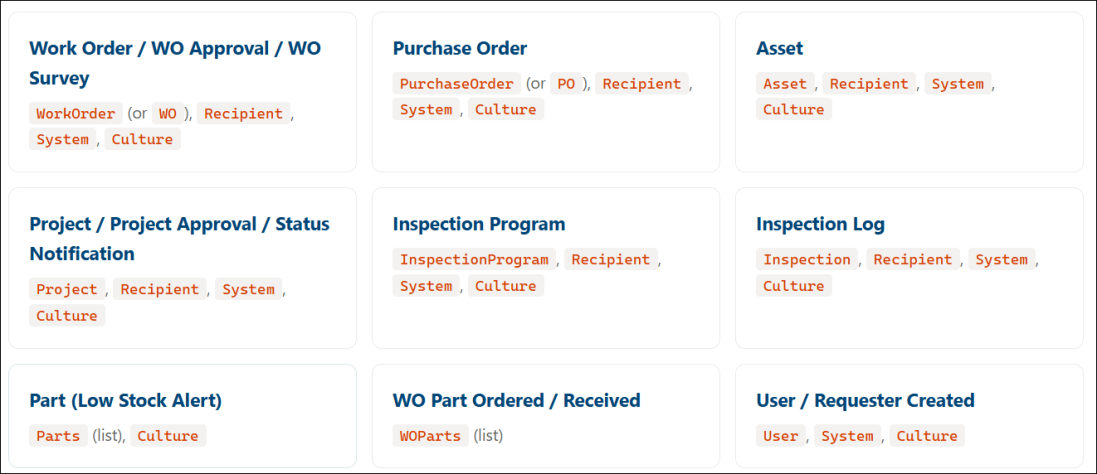
Work Order Model — WorkOrder / WO
Available for template types: Work Order, WO Approval, WO Survey. You can use either WorkOrder or WO as the root object name.
Scalar Properties
| Property | Type | Description |
|---|---|---|
| WorkOrder.Id | long | Work order ID |
| WorkOrder.Title | string | Work order title / name |
| WorkOrder.WorkOrderNo | string | Work order number |
| WorkOrder.AssignedTo | string | Full names of assigned users |
| WorkOrder.SourceType | string | Source type (Asset, Location, Site, MeterTitle) |
| WorkOrder.SourceName | string | Name of the source entity |
| WorkOrder.SourceNo | string | Number of the source entity |
| WorkOrder.OriginationType | string | How the WO was created (PM / NonPM) |
| WorkOrder.Originator | string | Name of the originator (user or PM procedure) |
| WorkOrder.DateOriginated | DateTime? | Date originated |
| WorkOrder.DateAssigned | DateTime? | Date assigned |
| WorkOrder.DateCompleted | DateTime? | Date completed |
| WorkOrder.DateExpected | DateTime? | Expected completion date |
| WorkOrder.DateUpdated | DateTime? | Last updated date |
| WorkOrder.LastStatusChangedOn | DateTime | Last status change timestamp |
| WorkOrder.LastRemindedOn | DateTime? | Last reminder sent timestamp |
| WorkOrder.EstimatedHours | double | Estimated hours |
| WorkOrder.EstimatedCost | double | Estimated cost |
| WorkOrder.Downtime | double | Downtime |
| WorkOrder.LaborHours | double | Actual labor hours |
| WorkOrder.LaborCost | double | Actual labor cost |
| WorkOrder.PartCost | double | Part cost |
| WorkOrder.OtherHours | double | Other hours |
| WorkOrder.OtherCost | double | Other cost |
| WorkOrder.ToolCribCost | double | Tool crib cost |
| WorkOrder.TotalHours | double | Total hours |
| WorkOrder.TotalCost | double | Total cost |
| WorkOrder.WorkRequested | string | Work requested description |
| WorkOrder.Action | string | Action taken |
| WorkOrder.Comment | string | Comments |
| WorkOrder.Addr1 | string | Address line 1 |
| WorkOrder.Addr2 | string | Address line 2 |
| WorkOrder.City | string | City |
| WorkOrder.StateProvince | string | State / Province |
| WorkOrder.PostalCode | string | Postal code |
| WorkOrder.CountryCode | string | Country code |
| WorkOrder.AreaRoomNo | string | Area / Room number |
| WorkOrder.RequesterAvailabilityNotes | string | Requester availability notes |
| WorkOrder.IsOnAsset | bool | True if source is an asset |
| WorkOrder.IsOnSite | bool | True if source is a site |
| WorkOrder.IsOnLocation | bool | True if source is a location |
| WorkOrder.IsOnMeterTitle | bool | True if source is a meter title |
| WorkOrder.IsOriginatedFromPM | bool | True if originated from a PM procedure |
| WorkOrder.IsInApproval | bool | True if in an approval workflow |
Nested Objects
|
Object |
Description |
Key Properties |
|---|---|---|
|
WorkOrder.WOStatus |
Work order status |
.Name, .StatusNo |
|
WorkOrder.WOType |
Work order type |
.Name, .WOTypeNo |
|
WorkOrder.WorkType |
Work type |
.Name, .WorkTypeNo |
|
WorkOrder.Priority |
Priority |
.Name, .PriorityNo |
|
WorkOrder.Problem |
Problem |
.Name, .ProblemNo |
|
WorkOrder.Cause |
Cause |
.Name, .CauseNo |
|
WorkOrder.Project |
Associated project |
.Name, .ProjectNo |
|
WorkOrder.CostCenter |
Cost center |
.Name, .CostCenterNo |
|
WorkOrder.OriginUser |
Origin user |
|
|
WorkOrder.OriginPM |
Origin PM procedure |
.Name |
|
WorkOrder.SurveyEmailSetting |
Survey email settings |
.SurveyUrl |
|
WorkOrder.DeclineNote |
Decline note data |
.Note, .DeclinedBy |
List Properties (for loops)
| List | Item Type | Description |
|---|---|---|
| WorkOrder.WOUsers | User | Assigned users (see User model) |
| WorkOrder.Tasks | WOTask | Work order tasks (.Name, .Status, .Description) |
| WorkOrder.WOParts | WOPart | Parts used (.Name, .PartNo, .Quantity, .UsageType) |
| WorkOrder.WOLabors | WOLabor | Labor entries (.Hours, .Cost) |
| WorkOrder.WOToolCribs | WOToolCrib | Tool crib entries |
| WorkOrder.WOMedia | Medium | Attachments (.Name, .Url) |
| WorkOrder.SourceAssets | Asset | Source assets (if source type is Asset) |
| WorkOrder.SourceLocations | Location | Source locations |
| WorkOrder.SourceSites | Site | Source sites |
| WorkOrder.SourceMeterTitles | MeterTitle | Source meter titles |
| WorkOrder.CustomFields | Dictionary | Custom field name/value pairs |
Purchase Order Model — PurchaseOrder / PO
Scalar Properties
| Property | Type | Description |
|---|---|---|
| PurchaseOrder.Id | int | Purchase order ID |
| PurchaseOrder.Name | string | PO name |
| PurchaseOrder.PurchaseOrderNo | string | PO number |
| PurchaseOrder.AccountNo | string | Account number |
| PurchaseOrder.POStatusName | string | Current status name |
| PurchaseOrder.CreatedBy | string | Created by (user name) |
| PurchaseOrder.CreatedOn | DateTime | Creation date |
| PurchaseOrder.DateOriginated | DateTime | Date originated |
| PurchaseOrder.DateSubmitted | DateTime? | Date submitted |
| PurchaseOrder.DateReceived | DateTime? | Date received |
| PurchaseOrder.DateCompleted | DateTime? | Date completed |
| PurchaseOrder.DateExpected | DateTime? | Expected date |
| PurchaseOrder.LastModifiedOn | DateTime | Last modified date |
| PurchaseOrder.LastModifiedBy | string | Last modified by |
| PurchaseOrder.TotalPartAmount | double | Total part amount |
| PurchaseOrder.TotalItemAmount | double | Total item amount |
| PurchaseOrder.TotalAmount | double | Total amount |
| PurchaseOrder.TotalReceived | double | Total received amount |
| PurchaseOrder.TotalOther | double | Total other costs |
| PurchaseOrder.TotalTax | double | Total tax |
| PurchaseOrder.TotalShipping | double | Total shipping |
| PurchaseOrder.GrandTotal | double | Grand total |
| PurchaseOrder.ReceivedTotal | double | Received total |
| PurchaseOrder.Note | string | Notes |
| PurchaseOrder.BillingName | string | Billing name |
| PurchaseOrder.BillingAddr1 | string | Billing address line 1 |
| PurchaseOrder.BillingAddr2 | string | Billing address line 2 |
| PurchaseOrder.BillingCity | string | Billing city |
| PurchaseOrder.BillingStateProvince | string | Billing state/province |
| PurchaseOrder.BillingPostalCode | string | Billing postal code |
| PurchaseOrder.ShippingName | string | Shipping name |
| PurchaseOrder.ShippingAddr1 | string | Shipping address line 1 |
| PurchaseOrder.ShippingAddr2 | string | Shipping address line 2 |
| PurchaseOrder.ShippingCity | string | Shipping city |
| PurchaseOrder.ShippingStateProvince | string | Shipping state/province |
| PurchaseOrder.ShippingPostalCode | string | Shipping postal code |
| PurchaseOrder.ShippingCountryCode | string | Shipping country code |
| PurchaseOrder.ProjectName | string | Associated project name |
| PurchaseOrder.ProjectNo | string | Associated project number |
| PurchaseOrder.TermConditionName | string | Terms & conditions name |
| PurchaseOrder.TermConditionContent | string | Terms & conditions content |
Nested Objects and Lists
| Property | Type | Description |
|---|---|---|
| PurchaseOrder.Site | Site | Site object (.Name, .SiteNo) |
| PurchaseOrder.POStatus | POStatus | Status object (.Name, .StatusNo) |
| PurchaseOrder.CostCenter | CostCenter | Cost center (.Name, .CostCenterNo) |
| PurchaseOrder.Supplier | Supplier | PO-level supplier (.Name, .SupplierNo) |
| PurchaseOrder.Originator | User | Originating user (see User model) |
| PurchaseOrder.Parts | List<POItem> | PO part line items |
| PurchaseOrder.Items | List<POItem> | PO non-part line items |
| PurchaseOrder.Suppliers | List<Supplier> | All suppliers (PO-level or item-level) |
| PurchaseOrder.POMedia | List<Medium> | Attachments |
| PurchaseOrder.CustomFields | Dictionary | Custom field name/value pairs |
Asset Model — Asset
Scalar Properties
| Property | Type | Description |
|---|---|---|
| Asset.Id | int | Asset ID |
| Asset.Name | string | Asset name |
| Asset.AssetNo | string | Asset number |
| Asset.SerialNo | string | Serial number |
| Asset.Make | string | Manufacturer / make |
| Asset.Model | string | Model |
| Asset.BarCode | string | Barcode |
| Asset.RFID | string | RFID tag |
| Asset.PurchasePrice | double | Purchase price |
| Asset.PurchaseDate | DateTime? | Purchase date |
| Asset.PurchaseInvoiceNo | string | Purchase invoice number |
| Asset.LifeTime | double | Expected lifetime |
| Asset.ReplacementCost | double | Replacement cost |
| Asset.SalvageValue | double | Salvage value |
| Asset.WarrantyExpirationDate | DateTime? | Warranty expiration |
| Asset.WarrantyTitle | string | Warranty title |
| Asset.WarrantyVendorName | string | Warranty vendor name |
| Asset.IsToolCrib | bool | Is tool crib item |
| Asset.TotalCost | double | Total cost |
| Asset.TotalHours | double | Total hours |
| Asset.TotalDowntime | double? | Total downtime |
| Asset.Note | string | Notes |
| Asset.SiteName | string | Site name |
| Asset.SiteNo | string | Site number |
| Asset.LocationName | string | Location name |
| Asset.LocationPath | string | Full location path |
| Asset.LocationNo | string | Location number |
| Asset.ConditionDate | DateTime? | Condition assessment date |
| Asset.EstimatedReplacementDate | DateTime? | Estimated replacement date |
| Asset.AssessmentNote | string | Assessment notes |
Nest Objects
| Object | Description | Key Properties |
|---|---|---|
| Asset.Site | Site | .Name,.SiteNo |
| Asset.Location | Location | .Name,.LocationNo |
| Asset.Category | Category | .Name,.CategoryNo |
| Asset.CostCenter | Cost center | .Name,.CostCenterNo |
| Asset.Supplier | Supplier | .Name,.SupplierNo |
| Asset.AssetCondition | Condition | .Name |
| Asset.AssetStatus | Status | .Name |
| Asset.Criticality | Criticality | .Name |
| Asset.ResponsibleUser | Responsible user | See User model |
| Asset.ParentAsset | Parent asset | Same properties as Asset |
Project Model — Project
Scalar Properties
| Property | Type | Description |
|---|---|---|
| Project.Id | int | Project ID |
| Project.Name | string | Project name |
| Project.ProjectNo | string | Project number |
| Project.StatusName | string | Project status name |
| Project.Description | string | Description |
| Project.DateOriginated | DateTime? | Date originated |
| Project.DateCompleted | DateTime? | Date completed |
| Project.StartDate | DateTime? | Start date |
| Project.EndDate | DateTime? | End date |
| Project.LaborBudget | double | Labor budget |
| Project.PartBudget | double | Part budget |
| Project.OtherBudget | double | Other budget |
| Project.WOBudget | double | Work order budget |
| Project.POBudget | double | Purchase order budget |
| Project.TotalBudget | double | Total budget |
| Project.LaborCost | double | Actual labor cost |
| Project.PartCost | double | Actual part cost |
| Project.OtherCost | double | Actual other cost |
| Project.WOCost | double | Actual WO cost |
| Project.POCost | double | Actual PO cost |
| Project.POCostReceived | double | PO cost received |
| Project.TotalCost | double | Total actual cost |
| Project.Note | string | Notes |
| Project.ProjectTypeName | string | Project type name |
| Project.ProjectTypeNo | string | Project type number |
| Project.WaitForApproval | bool | True if waiting for approval |
Nest Objects
| Property | Type | Description |
|---|---|---|
| Project.Site | Site | Site (.Name, .SiteNo) |
| Project.ProjectStatus | ProjectStatus | Status (.Name) |
| Project.Priority | Priority | Priority (.Name) |
| Project.CostCenter | CostCenter | Cost center (.Name, .CostCenterNo) |
| Project.OriginatorUser | User | Originating user |
| Project.DeclineNote | DeclineNote | Decline note |
| Project.Users | List<User> | Assigned users |
| Project.Approvers | List<User> | Approvers |
| Project.WorkOrders | List<WorkOrder> | Related work orders |
| Project.PurchaseOrders | List<PurchaseOrder> | Related purchase orders |
| Project.Inspections | List<Inspection> | Related inspections |
| Project.Media | List<Medium> | Attachments |
Inspection Program Model — InspectionProgram
Properties
| Property | Type | Description |
|---|---|---|
| InspectionProgram.Id | int | Inspection ID |
| InspectionProgram.Name | string | Inspection name |
| InspectionProgram.InspectionNo | string | Inspection number |
| InspectionProgram.Description | string | Description |
| InspectionProgram.IsEnabled | bool | Whether enabled |
| InspectionProgram.SourceType | string | Source type (Asset, Location, Site) |
| InspectionProgram.EstimatedHours | double | Estimated hours |
| InspectionProgram.EstimatedCost | double | Estimated cost |
| InspectionProgram.ScheduleType | string | Schedule type |
| InspectionProgram.StartDate | DateTime | Start date |
| InspectionProgram.EndDate | DateTime? | End date |
| InspectionProgram.DateScheduled | DateTime | Next scheduled date for reminder |
| InspectionProgram.NextScheduledDate | DateTime? | Next scheduled date |
| InspectionProgram.Frequency | int | Frequency |
| InspectionProgram.ExternalInspector | string | External inspector name |
| InspectionProgram.Note | string | Notes |
| InspectionProgram.LastResult | string | Last result |
| InspectionProgram.IsOnAsset | bool | True if on an asset |
| InspectionProgram.IsOnSite | bool | True if on a site |
| InspectionProgram.IsOnLocation | bool | True if on a location |
Inspection Log Model — Inspection
Properties
| Property | Type | Description |
|---|---|---|
| Inspection.Id | long | Inspection log ID |
| Inspection.SourceType | string | Source type |
| Inspection.DateStarted | string | Start date (short date string) |
| Inspection.DateCompleted | DateTime? | Completion date |
| Inspection.DateScheduled | DateTime | Scheduled date |
| Inspection.ExternalInspector | string | External inspector |
| Inspection.Note | string | Notes |
| Inspection.Result | string | Result |
| Inspection.IsOnAsset | bool | True if on an asset |
| Inspection.IsOnSite | bool | True if on a site |
| Inspection.IsOnLocation | bool | True if on a location |
Nested: .InspectionProgram (full inspection program model), .InspectionStatus
Lists: .InspectionUsers, .Tasks, .SourceAssets, .SourceLocations, .SourceSites
Part Model — Parts (Low Stock Alert)
The Part template type provides a list of parts. Use a for loop to iterate.
Properties per Part Item
{% for part in Parts %}
  {{ part.Name }} — {{ part.PartNo }} — Qty on hand: {{ part.QuantityOnHand }}
{% endfor %}
| Property | Type | Description |
|---|---|---|
| part.Id | int | Part ID |
| part.Name | string | Part name |
| part.PartNo | string | Part number |
| part.AlternatePartNo | string | Alternate part number |
| part.BarCode | string | Barcode |
| part.RFID | string | RFID |
| part.IsActive | bool | Active flag |
| part.UnitCost | double | Unit cost |
| part.QuantityOnHand | double | On-hand quantity |
| part.QuantityOnOrder | double | On-order quantity |
| part.QuantityOnBackOrder | double | Backorder quantity |
| part.QuantityReserved | double | Reserved quantity |
| part.QuantityAvailable | double | Available quantity |
| part.ReorderLevel | double | Reorder level |
| part.ParLevel | double | Par level |
| part.MaxLevel | double | Max level |
| part.Description | string | Description |
| part.SiteName | string | Site name |
| part.SiteNo | string | Site number |
| part.UnitName | string | Unit of measure name |
| part.ManufacturerName | string | Manufacturer name |
| part.ManufacturerPartNo | string | Manufacturer part number |
| part.Note | string | Notes |
WO Part Ordered / Received Model — WOParts
Properties per WOParts Item
{% for item in WOParts %}
  WO# {{ item.WorkOrderNo }} — {{ item.PartName }} ({{ item.PartNo }})
  Ordered: {{ item.QuantityOrdered }}, Received: {{ item.QuantityReceived }}
{% endfor %}
| Property | Type | Description |
|---|---|---|
| item.WorkOrderNo | string | Work order number |
| item.PartName | string | Part name |
| item.PartNo | string | Part number |
| item.Email | string | Contact email |
| item.QuantityOrdered | double? | Quantity ordered |
| item.QuantityReceived | double? | Quantity received |
User / Requester Created Model — User
The User template type provides a User object (same properties as Recipient), plus System and Culture.
Shared Models
These objects are available across most template types.
Recipient / User Model — Recipient
The Recipient object represents the person receiving the email. It has the same structure when used as User, OriginUser, OriginatorUser, ResponsibleUser, or items in user lists.
User Properties
| Property | Type | Description |
|---|---|---|
| Recipient.Id | int | User ID |
| Recipient.UserNo | string | User number |
| Recipient.Login | string | Login / username |
| Recipient.FirstName | string | First name |
| Recipient.MiddleName | string | Middle name |
| Recipient.LastName | string | Last name |
| Recipient.FullName | string | Full name |
| Recipient.UserType | string | User type |
| Recipient.UserStatus | string | User status |
| Recipient.Role | string | Role name |
| Recipient.Region | string | Region name |
| Recipient.RegionNo | string | Region number |
| Recipient.Site | string | Site name |
| Recipient.SiteNo | string | Site number |
| Recipient.Department | string | Department name |
| Recipient.DepartmentNo | string | Department number |
| Recipient.CostCenter | string | Cost center name |
| Recipient.CostCenterNo | string | Cost center number |
| Recipient.JobTitle | string | Job title |
| Recipient.Email | string | Email address |
| Recipient.Phone1 | string | Phone 1 |
| Recipient.Phone2 | string | Phone 2 |
| Recipient.Phone3 | string | Phone 3 |
| Recipient.Phone4 | string | Phone 4 |
| Recipient.POPower | double | PO approval power |
| Recipient.POLimit | double | PO approval limit |
System Model — System
Provides deep-link URLs back to the application. Useful for adding "View in App" links in emails.
URL Properties
| Property | Description |
|---|---|
| System.Url.RootUrl | Root application URL |
| System.Url.Home | Home page URL |
| System.Url.WOSummary | Work order summary page |
| System.Url.WOView | Work order detail URL (use with ID) |
| System.Url.WorkOrderEdit | Work order edit URL (use with ID) |
| System.Url.AssetSummary | Asset summary page |
| System.Url.AssetView | Asset detail URL |
| System.Url.POSummary | Purchase order summary page |
| System.Url.POView | Purchase order detail URL |
| System.Url.PartSummary | Part summary page |
| System.Url.PartView | Part detail URL |
| System.Url.ProjectSummary | Project summary page |
| System.Url.ProjectView | Project detail URL |
| System.Url.PMSummary | PM procedure summary page |
| System.Url.PMView | PM procedure detail URL |
| System.Url.InspectionSummary | Inspection summary page |
| System.Url.InspectionView | Inspection detail URL |
| System.Url.InspectionLogView | Inspection log detail URL |
| System.Url.RedirectWOApp | Deep link – Work order (mobile/app) |
| System.Url.RedirectAssetApp | Deep link – Asset (mobile/app) |
| System.Url.RedirectPartApp | Deep link – Part (mobile/app) |
| System.Url.RedirectMyRequestApp | Deep link – My Request (mobile/app) |
| System.Url.Upload | Uploads base URL |
Culture Model — Culture
Properties
| Property | Type | Description |
|---|---|---|
| Culture.Name | string | Culture name |
| Culture.TargetCode | string | Target culture code (e.g., en-US) |
| Culture.DateFormat | string | Date format string |
| Culture.TimeFormat | string | Time format string |
| Culture.DateTimeFormat | string | Date + time format string |
| Culture.NameFormat | string | Name display format |
| Culture.WholeNumberFormat | string | Whole number format |
| Culture.FractionNumberFormat | string | Fraction number format |
| Culture.CurrencyFormat | string | Currency format |
| Culture.PreciseCurrencyFormat | string | Precise currency format |
Full Examples
Example 1: Work Order Notification Email
Subject Template:
[{{ WorkOrder.WOStatus.Name }}] Work Order {{ WorkOrder.WorkOrderNo }} — {{ WorkOrder.Title }}
Body Template:
<h2>Work Order {{ WorkOrder.WorkOrderNo }}</h2>
<p>Hello {{ Recipient.FirstName }},</p>
<p>A work order has been updated:</p>

<table border="1" cellpadding="8" cellspacing="0" style="border-collapse:collapse">
  <tr><td><strong>Title</strong></td><td>{{ WorkOrder.Title }}</td></tr>
  <tr><td><strong>Status</strong></td><td>{{ WorkOrder.WOStatus.Name }}</td></tr>
  <tr><td><strong>Priority</strong></td><td>{{ WorkOrder.Priority.Name }}</td></tr>
  <tr><td><strong>Assigned To</strong></td><td>{{ WorkOrder.AssignedTo }}</td></tr>
  <tr><td><strong>Date Expected</strong></td><td>{{ WorkOrder.DateExpected | date: "%m/%d/%Y" }}</td></tr>
  <tr><td><strong>Total Cost</strong></td><td>${{ WorkOrder.TotalCost | round: 2 }}</td></tr>
</table>

{% if WorkOrder.WorkRequested != "" %}
<h3>Work Requested</h3>
<p>{{ WorkOrder.WorkRequested }}</p>
{% endif %}

{% if WorkOrder.Tasks.size > 0 %}
<h3>Tasks</h3>
<table border="1" cellpadding="6" cellspacing="0" style="border-collapse:collapse">
  <tr><th>#</th><th>Task</th><th>Status</th></tr>
  {% for task in WorkOrder.Tasks %}
  <tr>
    <td>{{ forloop.index }}</td>
    <td>{{ task.Name }}</td>
    <td>{{ task.Status }}</td>
  </tr>
  {% endfor %}
</table>
{% endif %}

<p><a href="{{ System.Url.RootUrl }}">Open in Asset Essentials</a></p>
Example 2: Purchase Order with Line Items
Subject Template:
PO {{ PurchaseOrder.PurchaseOrderNo }} — {{ PurchaseOrder.POStatusName }}
Body Template:
<h2>Purchase Order: {{ PurchaseOrder.Name }}</h2>
<p>PO# {{ PurchaseOrder.PurchaseOrderNo }} | Status: {{ PurchaseOrder.POStatusName }}</p>
<p>Created by {{ PurchaseOrder.CreatedBy }} on {{ PurchaseOrder.CreatedOn | date: "%B %d, %Y" }}</p>
{% if PurchaseOrder.Supplier.Name != "" %}
<p><strong>Supplier:</strong> {{ PurchaseOrder.Supplier.Name }}</p>
{% endif %}
{% if PurchaseOrder.Parts.size > 0 %}
<h3>Parts</h3>
<table border="1" cellpadding="6" cellspacing="0" style="border-collapse:collapse;width:100%">
<tr><th>Part</th><th>Qty</th><th>Unit Cost</th><th>Total</th></tr>
{% for part in PurchaseOrder.Parts %}
<tr>
<td>{{ part.Name }}</td>
<td>{{ part.Quantity }}</td>
<td>${{ part.UnitCost | round: 2 }}</td>
<td>${{ part.TotalCost | round: 2 }}</td>
</tr>
{% endfor %}
</table>
{% endif %}
<hr>
<table>
<tr><td>Subtotal</td><td>${{ PurchaseOrder.TotalAmount | round: 2 }}</td></tr>
<tr><td>Tax</td><td>${{ PurchaseOrder.TotalTax | round: 2 }}</td></tr>
<tr><td>Shipping</td><td>${{ PurchaseOrder.TotalShipping | round: 2 }}</td></tr>
<tr><td><strong>Grand Total</strong></td><td><strong>${{ PurchaseOrder.GrandTotal | round: 2 }}</strong></td></tr>
</table>
{% if PurchaseOrder.TermConditionContent != "" %}
<h3>Terms & Conditions</h3>
<p>{{ PurchaseOrder.TermConditionContent }}</p>
{% endif %}
Example 3: Part Low Stock Alert
<h2>⚠️ Low Stock Alert</h2>
<p>The following parts have fallen below their reorder level:</p>

<table border="1" cellpadding="8" cellspacing="0" style="border-collapse:collapse;width:100%">
  <tr style="background:#004578;color:#fff">
    <th>Part #</th>
    <th>Name</th>
    <th>Site</th>
    <th>On Hand</th>
    <th>Reorder Level</th>
    <th>On Order</th>
  </tr>
  {% for part in Parts %}
  <tr{% if part.QuantityOnHand == 0 %} style="background:#FFF0F0"{% endif %}>
    <td>{{ part.PartNo }}</td>
    <td>{{ part.Name }}</td>
    <td>{{ part.SiteName }}</td>
    <td>{{ part.QuantityOnHand }}</td>
    <td>{{ part.ReorderLevel }}</td>
    <td>{{ part.QuantityOnOrder }}</td>
  </tr>
  {% endfor %}
</table>
Example 4: Inspection Reminder with Conditional Source Info
<h2>Inspection Reminder: {{ InspectionProgram.Name }}</h2>
<p>Hello {{ Recipient.FirstName }},</p>
<p>You have an upcoming inspection scheduled for
   {{ InspectionProgram.DateScheduled | date: "%A, %B %d, %Y" }}.</p>

{% if InspectionProgram.IsOnAsset %}
  {% for asset in InspectionProgram.SourceAssets %}
  <p><strong>Asset:</strong> {{ asset.Name }} ({{ asset.AssetNo }})</p>
  {% endfor %}
{% elsif InspectionProgram.IsOnLocation %}
  {% for loc in InspectionProgram.SourceLocations %}
  <p><strong>Location:</strong> {{ loc.Name }}</p>
  {% endfor %}
{% elsif InspectionProgram.IsOnSite %}
  {% for site in InspectionProgram.SourceSites %}
  <p><strong>Site:</strong> {{ site.Name }}</p>
  {% endfor %}
{% endif %}

{% if InspectionProgram.Tasks.size > 0 %}
<h3>Inspection Tasks</h3>
<ol>
  {% for task in InspectionProgram.Tasks %}
  <li>{{ task.Name }}</li>
  {% endfor %}
</ol>
{% endif %}

<p><a href="{{ System.Url.InspectionSummary }}">View Inspections</a></p>
Example 5: Subject Line with Conditional Priority Badge
Subject templates support the same Liquid syntax as the body:
{% if WorkOrder.Priority.Name == "Emergency" %} {% endif %}WO {{ WorkOrder.WorkOrderNo }}: {{ WorkOrder.Title }}
Troubleshooting
Template would not save - syntax error
-
Ensure every {% if %} has a matching {% endif %}.
-
Ensure every {% for %} has a matching {% endfor %}.
-
Check that all {{ }} and {% %} tags are properly closed.
-
Property names are case-sensitive. Use exactly the names listed above (e.g., WorkOrder.WorkOrderNo, not workorder.workorderno).
Variable shows blank / nothing
-
The value may genuinely be empty for that record. Use the default filter: {{ WorkOrder.Comment | default: "N/A" }}
-
Check that you're using the correct root object for your template type (e.g., WorkOrder for work order templates, PurchaseOrder for PO templates).
-
Verify the property name is spelled exactly as documented.
Loop produces no output
-
The list may be empty. Wrap loops in a size check: {% if WorkOrder.Tasks.size > 0 %}.
-
Make sure you're referencing the correct list property name.
HTML appears as plain text in the email
-
Ensure your template body is entered in the HTML editor mode, not plain text mode.
-
If a variable contains HTML (e.g., WorkRequested), it will be rendered as HTML in the email body.
Important: Template changes take effect immediately for all future emails of that type. Test your template with a small notification before rolling it out broadly.
