Using task books
Asset Essentials allows you to create a Task Book which groups an ordered collection of most commonly used tasks so that you can easily assign them to your PMs. Using Task Books can be beneficial when creating PMs for your inspections that typically include a larger group of common tasks.
Creating task books
- Click on the Admin menu icon and then on Configurations.
- Click on Task Books under the PM section.
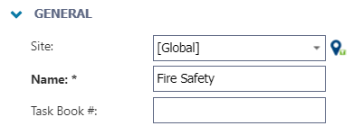
- If the Task Book should be available to all sites leave Global as the selected Site.
- Enter a name for the Task Book.
- Click the Select Task from library button in the Tasks/Steps section.
- In the pop up window, check the boxes next to the tasks you would like to include in this book, then click Select.
- Click and drag the arrow icons (
 ) to rearrange the steps in the appropriate order.
 - Enter a Description, if necessary.
- Click Save at the top of the page to finalize your changes.

Adding task books to a PM
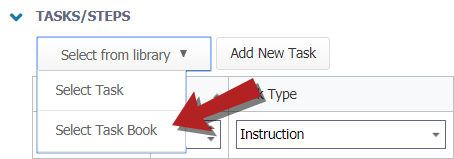
- Click the Select from library drop down in the Tasks/Steps section of the PM.
- Click Select Task Book.
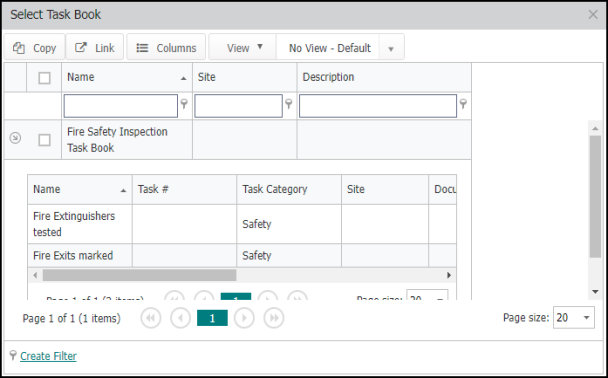
- Check the box next to each task book you would like to add to the PM and click the Copy or Link button. *Note: If you need to preview the tasks included, click the arrow icon (
 ) next to the task book.
- Copy: The Copy button will allow you to make a copy of all the tasks in the task book onto the individual PM. Once copied, the tasks are no longer associated with the task book and can be edited without altering the original tasks stored in the library.
- Link: The Link button will gray out the tasks on the individual PM and not allow you to make edits. In order to make edits using the Link button, the tasks must be edited directly from the task library and will affect all other PMs that have those tasks linked.
- The tasks will now appear on the PM.
- If you linked the Task Book to the PM, you will see the Task Book name rather than the list of tasks. Click the arrow icon (
 ) on the left to view the full list of tasks.
 - When a work order generates from the PM, the Task Book name will not be displayed on the work order but the tasks within the Task Book will still be listed in the correct order.
Task book that is copied to a PM

Task book that is linked to a PM

Apply Task Books to AE Web Work Orders
This enhancement enables users to add Task Books to Web Work Orders (WOs), aligning the experience with existing mobile functionality.
Add a Task Book to a Work Order via Web
-
Open the Work Order Management page.
-
Select an existing WO or create a new one.
-
Navigate to the Tasks section/card.
-
Click Select from Library.
-
Search and select the desired Task Book. Confirm to add its tasks to the work order in sequence. You can also view detailed information about the tasks included in the selected task book.
NOTE After adding a task book, you will have the option to remove it if needed.
-
Click Save on the WO to apply and persist your changes.
Complete Tasks on a Work Order
-
Instruction tasks: Mark as complete and add notes where relevant.
-
Pass/Fail tasks: Select Pass, Fixed, or Fail. Select Fixed or Fail may prompt for a note for auditability.
-
Progress: The task progress bar updates automatically as items are completed.
Key Definitions
-
Task: An individual, actionable step or instruction that can be completed and tracked (e.g., “Replace filter” or “Record amperage”).
-
Task Book: A predefined collection of tasks grouped together for reuse across work orders, preventive maintenance (PM), and inspections (e.g., “HVAC Quarterly PM”).
-
Task Libraries: The central repository where reusable tasks are created and managed for inclusion in Task Books.
