Quick Search
Objective: Gain an understanding of Quick Search and how to effectively use the Quick Search functionality to view or navigate to a specific record.
Quick Search is a cross-module search engine that enables users to quickly find and navigate to a specific record.
The Quick Search box is located in the top-right corner of the window.

Quick Search returns records that exactly match the search terms given by the user.
As the user starts typing a search term in the quick search field, the top 10 matching records and their Asset ID, Component Name, Component Network Measure Type, and Component Type will display. Users can then select any of these results to navigate directly to that record.
A minimum of 3 characters is required to initiate the Quick Search.
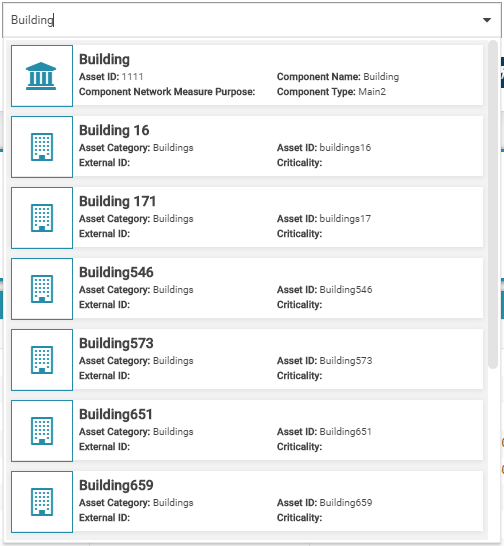
The user can also add one of the following prefixes to the quick search to limit the entities being searched.
Example: "A:smith" would search all assets for "smith" - e.g. Smith St, Smith Rd etc.
-
FL: functional location
-
A: asset
-
CP: component
-
DOC: document
-
WO: work order
-
WR: work request
Alternatively, scrolling down the quick search results and choosing the 'View All Results' option at the bottom of the results list, will take the user directly to a comprehensive Quick Search results page.
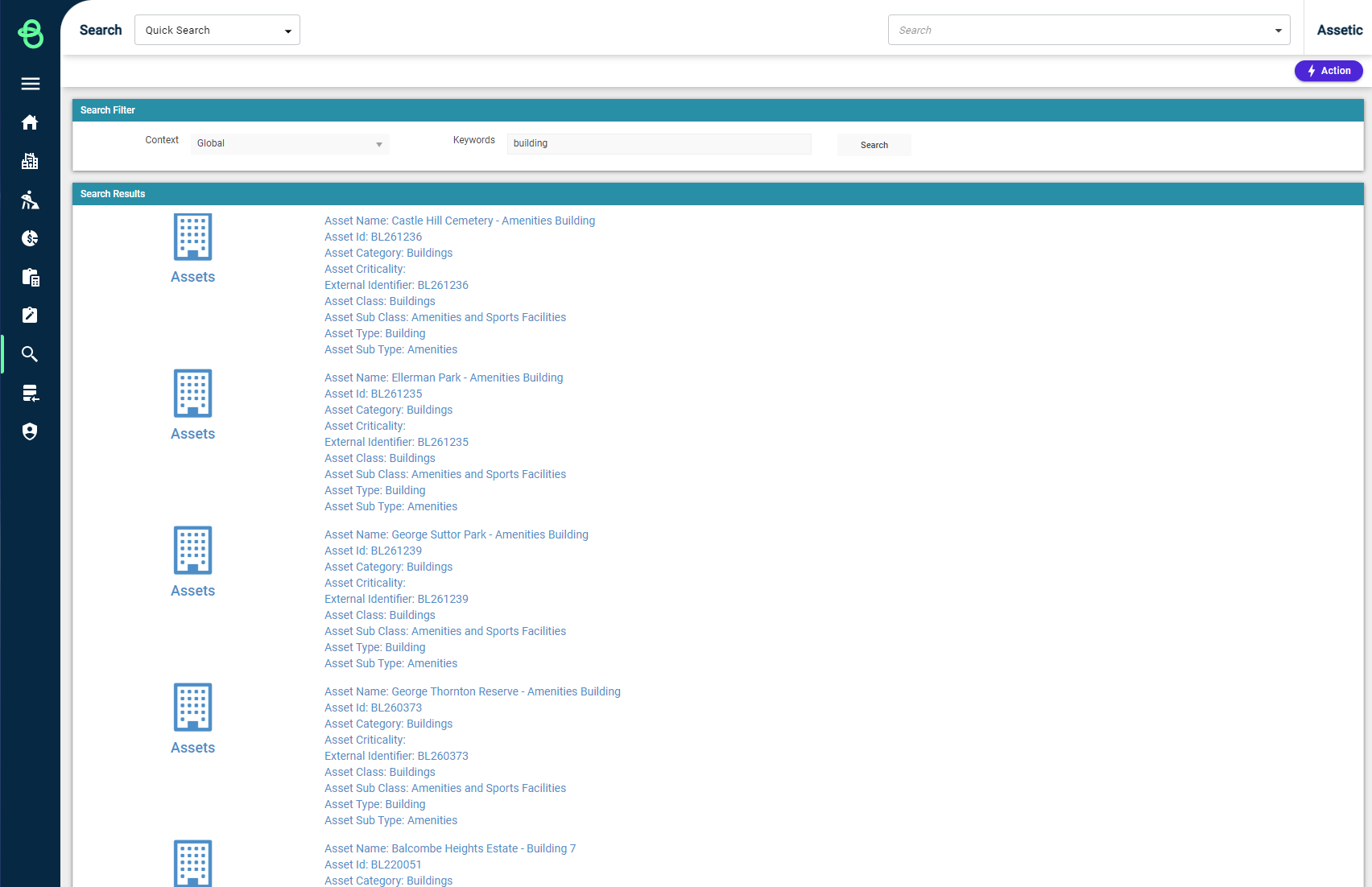
The "Context" option is available to limit the records being searched (e.g. only the Assets or Work Order module).
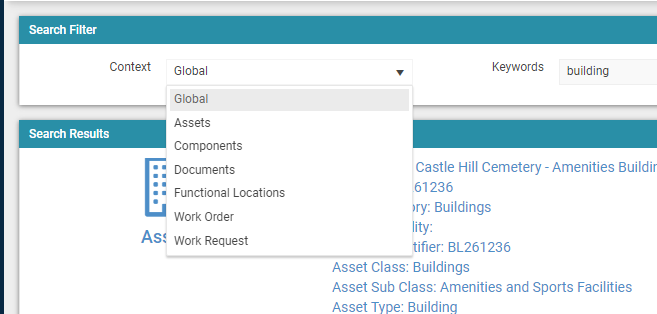
Quick Search analyses data across a range of entities and fields in the system to return the search results:
| Module | Fields Used by Quick Search |
| Assets |
|
| Components |
|
| Documents |
|
| Functional Locations |
|
| Work Orders |
|
| Work Requests |
|
NOTE For more in-depth and customizable searches, learn about the Advanced Search module.
