Unified Imports - Asset Core
Objective: Gain an understanding of how to use the Unified Imports Asset Core import to create new Assets with their child Components, Network Measures, and Service Criteria in a single Data Exchange import template.
The Asset Core Unified Import allows for the simultaneous creation of Assets alongside any child Components, Network Measure records, and Service Criteria Assessment scores, while also linking to a parent Functional Location (either an existing Functional Location, or a newly created Functional Location as part of the Unified Import) . To do this, users first download the template file from the Data Exchange Import Wizard.
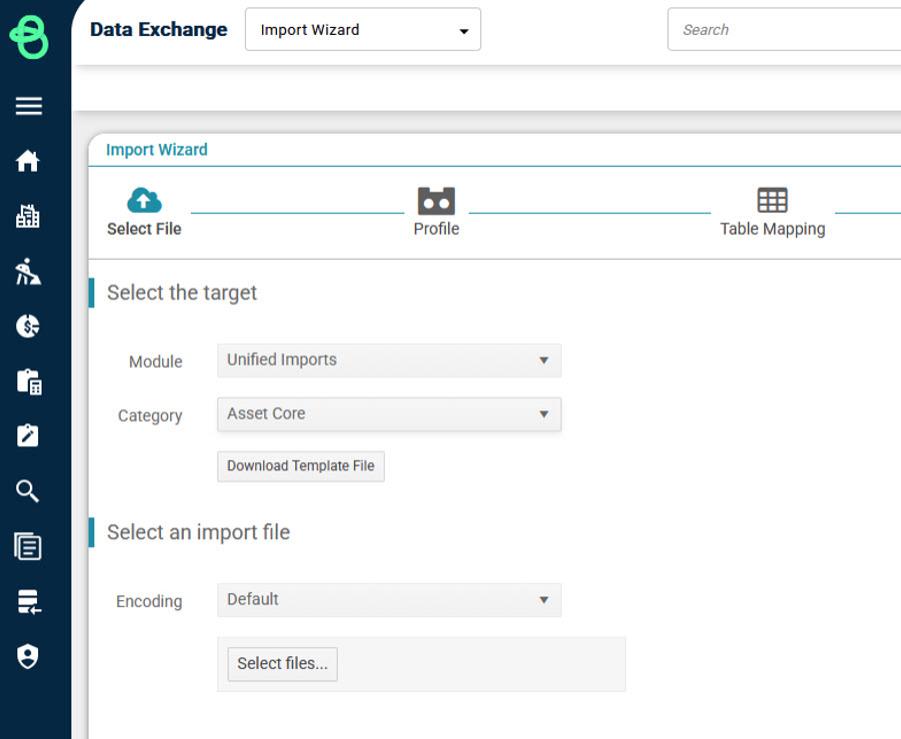
The import file must then be populated with all the details of the created Asset and any of its child objects, and optionally parent Functional Location (if the Functional Location details provided match an existing Functional Location, the Asset will be linked to that FL. Otherwise, the Unified Import will create a new FL as the parent of the Asset). When populating the file, multiple rows within the import file will correspond to the same Asset, and the populated import rows are grouped based on the Asset ID (if populated), or the Asset Name (if the Asset ID column is left blank, as would be the case when Asset ID Auto-generation is enabled).
For example, if an Asset with two different child Components was being created, the details of each Component would be populated in a separate row in the import file – with different values for each Component, but identical values for the Asset details, allowing the import wizard to identify and group these child Components under the correct parent Asset.

In this example, a single Asset with the ID ROAD007732 is being created with 2 different child Components. If AutoID Generation were enabled for the Roads Asset Category, then the Asset ID column would be left blank, and the name (Castle St) would be used by the import wizard to identify that the two Components belonged to the same single Asset.
Similarly, the unified import can create a single Component with multiple Network Measure records or Service Criteria Assessment Scores against it – in that scenario, the Asset and Component details would appear in multiple rows, with different NM or Assessment Score values each in their own row.

In this example, a single Asset is being created with one Component, which itself has 3 different Service Criteria Assessments.
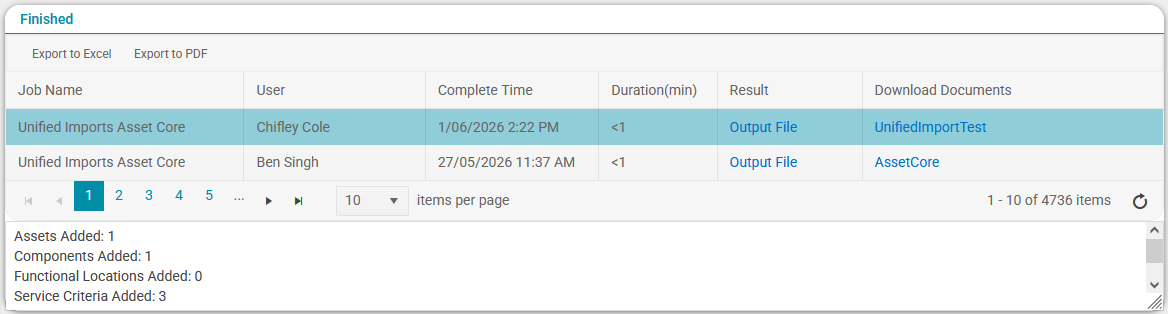
Once a Unified Import is completed, the import job can be selected in the Import History Finished grid to show how many objects and what types of object were created: