Detailed Transaction Report
Objective: Gain an understanding of how to generate a Detailed Transaction Report.
The Detailed Transaction Report allows users to export all transactions for one or multiple assets across all their components within a defined financial period range.
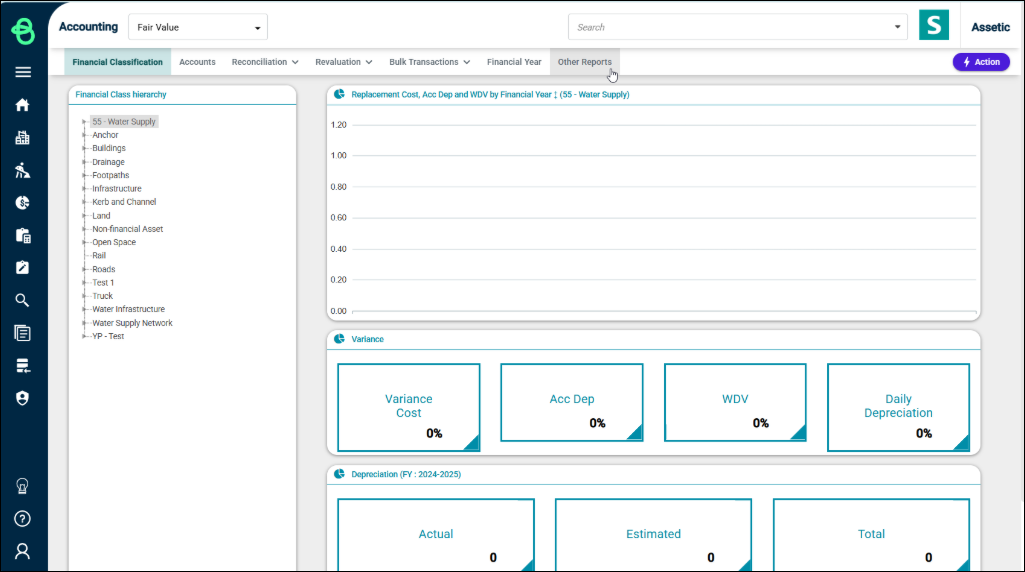
From the Navigation Sidebar, select 'Accounting' and from the Navigation drop-down, select the relevant ledger, either 'Fair Value' or 'Historical'. Next, select the 'Other Reports' tab from the top navigation to display the available reports.
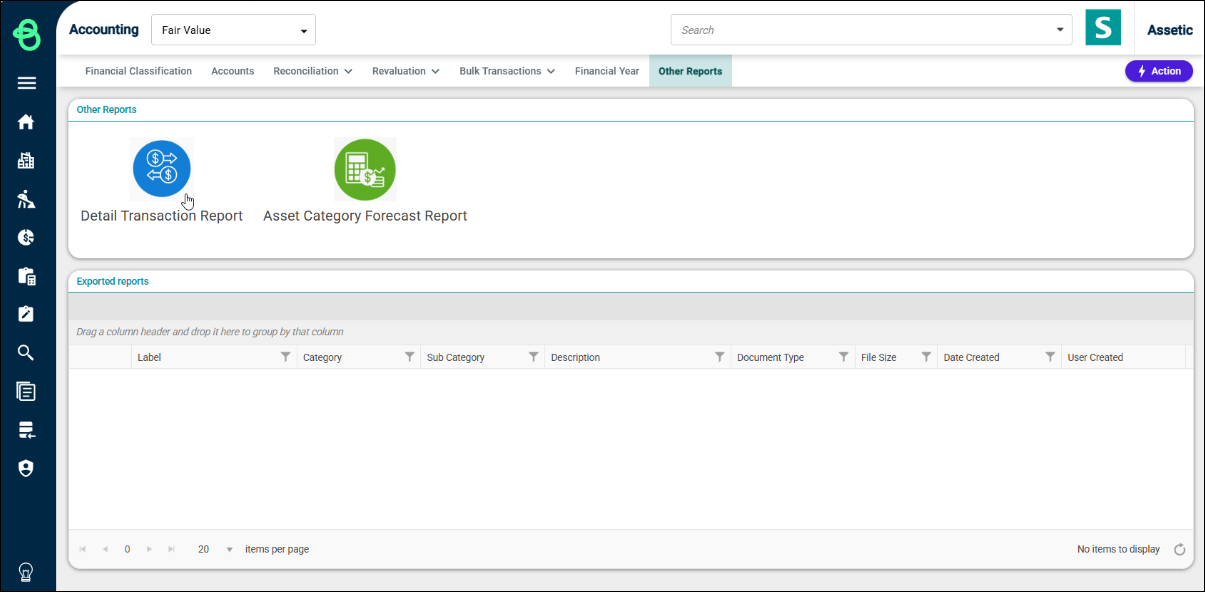
The 'Other Reports' page displays the available reports, along with an 'Exported reports' grid at the bottom of the screen where previously generated reports can be accessed.
Select 'Detail Transaction Report' to load the report configuration screen.
The report has two filters:
Financial Period Range: Select the start and end financial periods to define the date range for the report.
Select Asset: Use the asset selection field to search for and select one or multiple assets to include in the report. Up to 10 assets can be selected at a time. Assets can be searched by Asset Name or Asset ID.
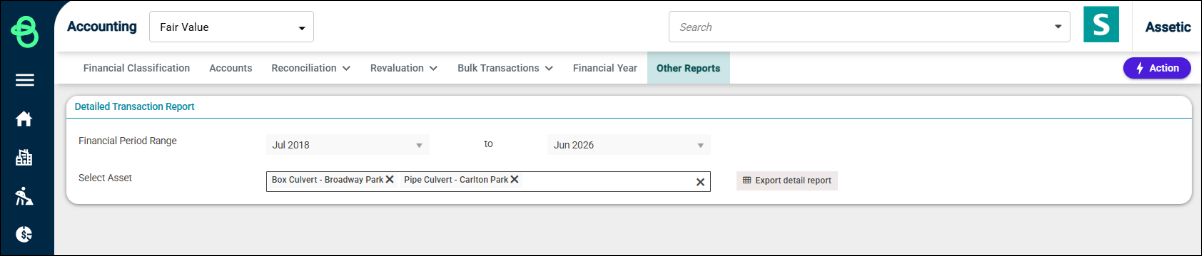
Once the desired filters have been configured, click 'Export detail report' to submit the report for generation. This report runs as a background job, so users can navigate away from the screen while it processes.
Select the 'Other Reports' tab to return to the previous screen. When the report has completed generating, it will appear in the 'Exported reports' grid at the bottom of the page, showing the label, category, document type, file size, date created, and the user who created it.
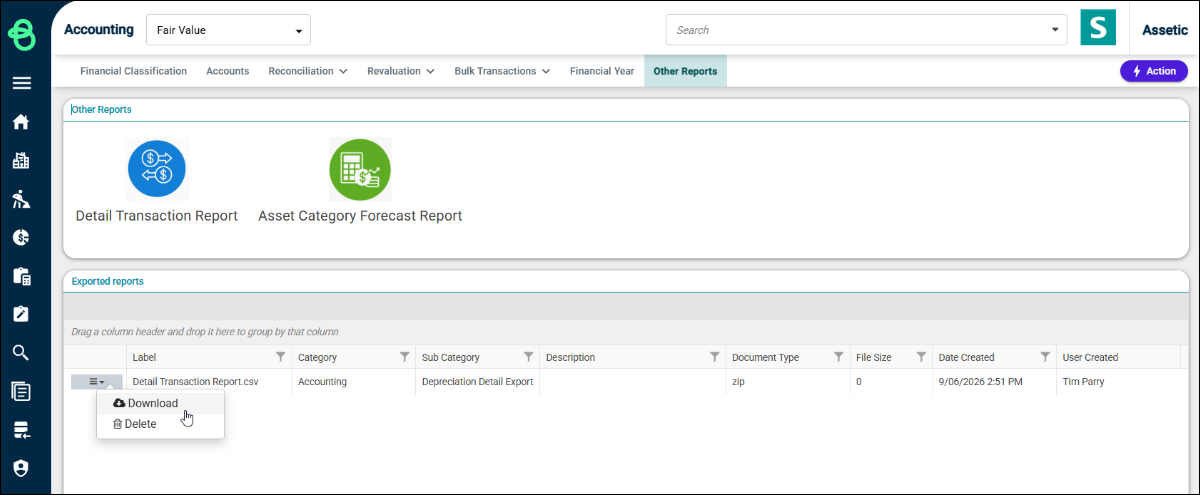
To download the report, click the menu icon to the left of the report entry and select 'Download'. The report will be downloaded locally as a zip file containing a CSV file.
To open the exported report, locate the downloaded .zip file, right-click to select the Unzip tool and extract the file. In the 'Extract to' dialog, continue or browse the folder path where the file is to be extracted to and select 'OK' to start the extraction. This will extract a .csv file in the selected folder with the same file name as the .zip file.
The CSV export contains one transaction per row, with all selected assets included in a single file grouped by asset. Records are ordered by Asset ID, Component ID, and Transaction Date.
If a previously exported report is no longer needed, click the menu icon and select 'Delete'. A confirmation message will be displayed before the report is removed.
Next Steps: To gain a more detailed understanding of Brightly Assetic Accounting, refer to the remaining articles in the Assetic Accounting section.
